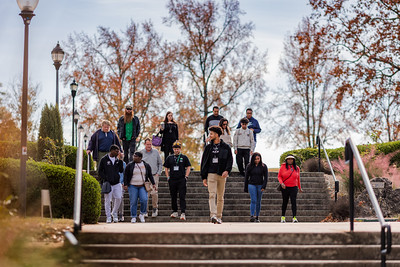
Students walking around an imaginary college landscape with buildings, books, and larger-than-life computers.

AI Spark Tips: From Curiosity to Confidence: Improving Assignment Instructions with the OLC Course Review Assistant GPT

If you’re curious about ChatGPT.Edu but haven’t quite figured out how it fits into your teaching, you’re not alone. AI suggestions for course materials can fall flat when using a generic AI, but you may be surprised by what you find when you use a customized GPT designed by instructors for instructors.

The Online Learning Consortium (OLC) Course Review Assistant GPT is a first-of-its-kind chatbot trained on education research in instructional design and online and hybrid learning and tuned to OLC’s evidence-based scorecards to improve course quality.

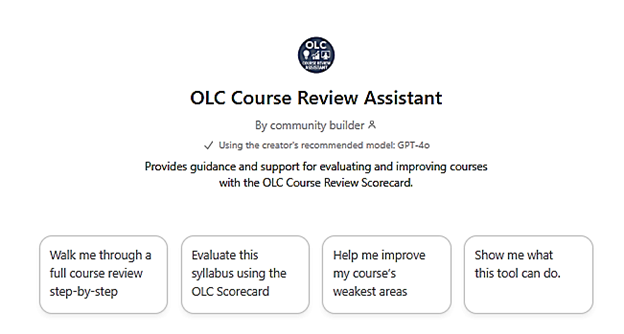
OLC Course Review Assistant. Provides guidance and support for evaluating and improving courses with the OLC Course Review Scorecard with four getting started action cards.

A Strong First Use Case: Refining What You Already Have

Instead of tackling a full course review, start with something familiar: assignment instructions.

Try using the OLC Course Review Assistant in ChatGPT.Edu to:

  • Clarify assignment instructions in student-friendly language
  • Ensure that assignments are designed to measure your course learning outcomes
  • Break down assignments into step-by-step checklists or guides
  • Create rubrics for grading assignments based on your instructions and outcomes

Example prompt:

“My course learning outcomes are [PASTE FROM SYLLABUS]. First evaluate how well my assessments align to the course learning objectives. Then, offer any suggestions for improving the assignment instructions below. Flag any areas in the instructions that might confuse students.” [Copy and Paste or Upload Your Current Assignment]

Review the suggestions for clarifying your instructions. If they help, keep them. If they don’t, you’ve learned something without risk.

Based on its training in instructional design, the OLC Course Review Assistant will ask you follow up questions that may give you new ideas for supporting your students’ learning with assignment examples, guides, rubrics, and other clarifying features.

Getting Started with the OLC Course Review Assistant GPT

USC Upstate is an OLC member. To get started claim your account by going to the OLC homepage, then click on “Create an Account.” Please use your institutional email address as your username as this will link you to our institutional membership.

Once your account is active, you may explore the OLC site, or go directly to the OLC Course Review GPT through your USC Upstate ChatGPT.Edu account. Go to ChatGPT (also available in the SpartanHub), then login by entering your USC Upstate email address in the email box to use single sign on.

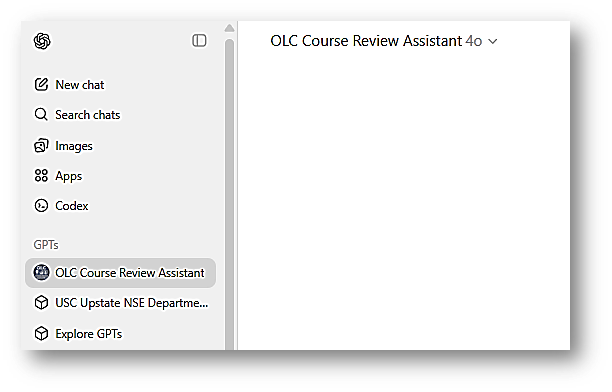
In the upper-left of your screen, you’ll see the OLC Course Review Assistant GPT button. Click it and begin interacting with the bot.

Screenshot of USC Upstate's ChatGPT Edu, with left menu options for New Chat, Search chats, Images, Apps, Codex, GPTS: OLC Course Review Assistant, USC Upstate NSE Department Alt Text Generator, and Explore GPTs

Final Thought

You don’t need to redesign your whole course to begin using AI thoughtfully to improve student learning outcomes. One low-stakes, repeatable use of a context-specific GPT can be enough to help you move from curiosity to confidence.

Students walking around an imaginary college landscape with buildings, books, and larger-than-life computers.

AI Spark Tips: When Students Ask at 2 a.m.

How Blackboard’s AVA Supports Learning Without Replacing You

We’ve all done it. We know the answer is in the user guide or instruction manual, but we don’t want to skim the whole document. Students feel the same way about the course syllabus. They know the answer is in the syllabus, but they don’t know where it is or what to look for.

Blackboard’s AI Virtual Assistant (AVA) is designed to provide just-in-time automated answers about your course and syllabus information, so you don’t have to. You write your syllabus and course instructions into your Blackboard course, and AVA looks up the answers to students’ logistical questions based on your materials.

What Is AVA?

Blackboard’s AVA is a built-in AI agent designed to work only within the closed system of your Blackboard course. It answers objective questions posed in natural language by referring students to specific content you have added to your course. It does not share the information outside your course to train AI models, and it does not search beyond your content to make up answers that sound right.

AVA acts like a self-writing FAQ that students can access anytime, any place.

How Do Students Use AVA?

If you opt to enable AVA in your course, students access AVA when they send you a message through Blackboard. After they click Send on a new message or Reply to an existing message thread, AVA introduces herself.

Screenshot: I am AVA, your Virtual Assistant. I'm searching the course for a response to your message. Any results I suggest are also seen by the instructor to verify their accuracy.

When students ask about due dates, course policies, assignment instructions, and other objective questions, AVA provides answers and direct links to the source of your course information. The complete record of this interaction is saved for your review within the Message thread in your Blackboard course.

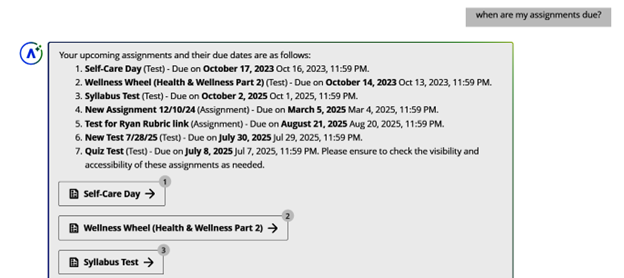
For example, a student could ask if any assignments are due tomorrow. Or they could ask for a list of assignment due dates. AVA searches your assignment due dates and compiles a list of course links.

Screenshot of AVA chat in Blackboard course. Student asks, "When are my assignments due?" AVA lists all upcoming due dates in order and provides assignment links in chronological order.

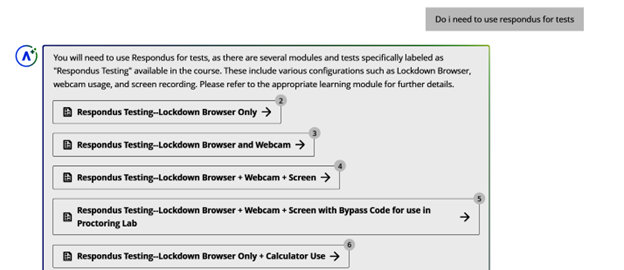
AVA will intuit some answers, but only if the link to course materials is very clear. For instance, I asked whether Respondus monitoring was required for tests, and AVA concluded it was based on the number of references to Respondus within the course.

screenshot of AVA chat. Student says, "Do I need to use Respondus for tests?" AVA answers that there are several modules and tests specifically labeled Respondus testing and provides links to those materials.

AVA did not, however, offer answers that were not directly available within the course materials provided by the instructor. My test course did not include a syllabus with a grading breakdown, so when I asked how much an assignment counted toward the Overall Grade, AVA directed me to wait for the instructor’s response.

Screenshot of AVA chat. Student: "how do I turn in my assignment?" AVA: "Currently, there is no direct information on how to turn in your video assignment. Please wait for your instructor's response for further guidance.

As you can see from the sample interactions, AVA is not “chatty” or personal. She does not make judgment calls nor offer a personality that may clash with your instructor presence in your course. She’s simply a clear, formal, automated messenger who directs students to the answers you have already posted in your course. Even at 2 a.m.

Getting Started with AVA in Your Course

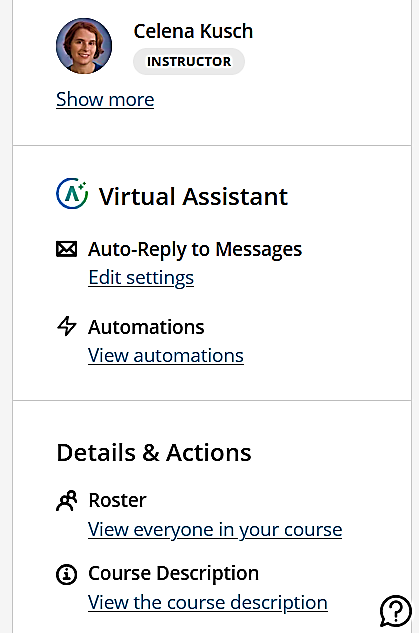
AVA is disabled in your class by default. Instructors have the option to enable AVA directly from the Details and Actions area of the Course Content page.

Under the Virtual Assistant heading on the main Course Content page, instructors may click “Edit Settings” to enable or disable AVA messaging.

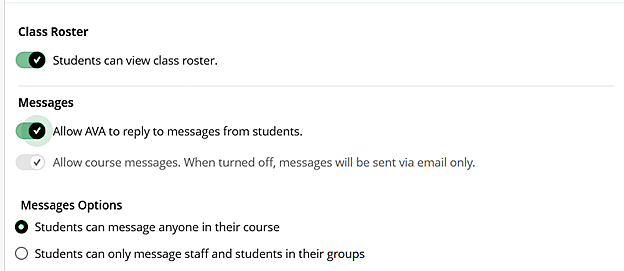
The Edit Settings button will take you to the Course Settings options, where you may toggle the switch labeled “Allow AVA to reply to messages from students.”

Instructors who wish to use AVA must opt in to using this feature in each course by editing those settings.

Screenshot of Blackboard Course Content page Details & Actions menu, including Virtual Assistant Auto-Reply to Messages with Edit Settings link.
Course Settings options showing Class Roster on, All AVA to reply to messages from students on, and Students can message anyone in their course on

Final Thoughts

AVA is a new student-facing AI feature in Blackboard. Its prompting is cautious and careful.

It effectively answers very straightforward questions about course logistics 24/7, and it provides a record of interactions for you to expand upon later.

Illustration of a snowy winter park with a wooden bench, bare trees covered in snow on either side, and a city skyline in the background under a light blue sky with falling snow.

5 Practices for Winter Well-Being

And just like that, Fall 2025 is drawing to a close. Over the past semester, you’ve published articles, presented at national and international conferences, completed—or begun—the ACUE Effective Teaching Certification, experimented with GenAI, made your courses more accessible, and shared your ideas and expertise with students and colleagues—all helping to make USC Upstate a more enduring, informed, and future-focused community. As you move into the winter holiday and reflect on your achievements and discoveries, here are 5 practices to support your winter well-being and rejuvenation. 

Continue reading “5 Practices for Winter Well-Being”

Blackboard Day 2026: Accessible Learning

Join us January 7, 2026 for our 7th Annual Blackboard Day

Register Now


9 am to 9:45 am

Welcome and Blackboard Learn Ultra Updates

Blackboard Learn Ultra Explore

Join the Blackboard Support Team to learn what is new in the Blackboard Learn Ultra Road Map for Spring-Fall 2026.

Look for new Grading settings and workflows, Automated Messages, Achievements, Competency-Based Mastery Learning, Release Conditions, and more!


10:00 am to 10:45 am

Streamlining Course Design with GenAI

Content Blocks and Knowledge Checks: Blackboard Learn Ultra Basics

Blackboard’s Artificial Intelligence Design Assist (ADA) offers easy-to-use course design tools enhanced by generative artificial intelligence and large language models. In this session, we will go over several key AI Design Assist tools for formatting modules and course pages (documents) and generating rubrics and knowledge checks. Plus, automate your content by using the human intelligence of the Learning Object Repository. Facilitator: Yamil Ernesto Ruiz, Director of Online Learning and Program Support


11:00 am to 11:45 am

Authentic and Career-Ready Assessments in Blackboard

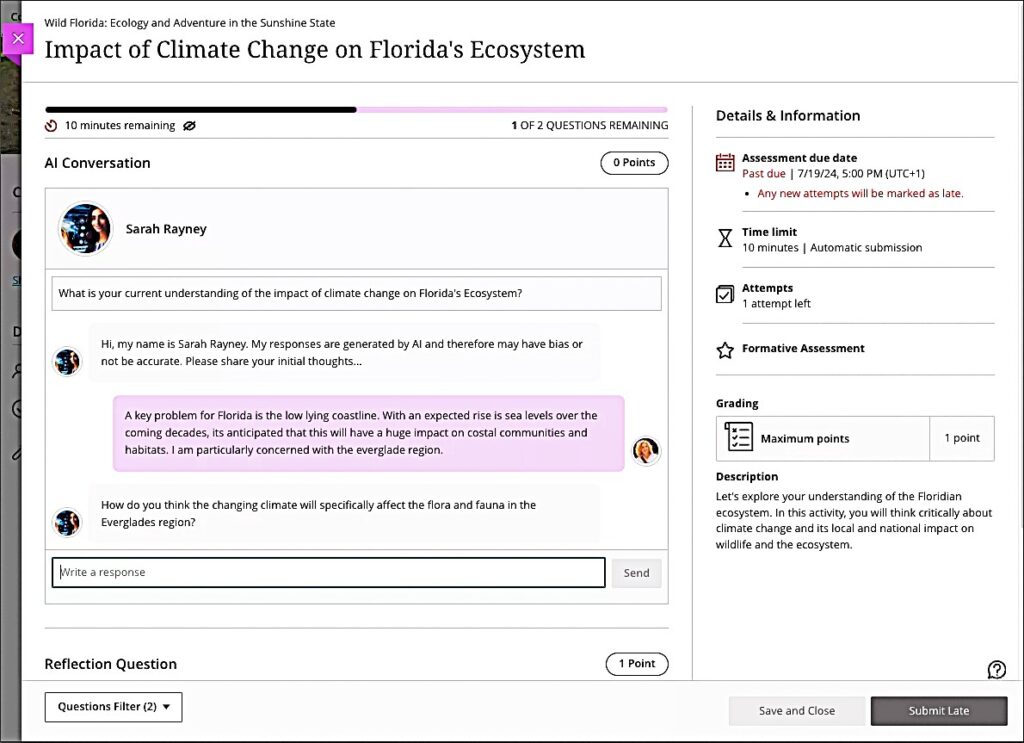
Screenshot of AI Conversation interface for students with image of the AI persona and examples of chat dialogue between student and AI persona

Both GenZ students and non-traditional learners crave relevance in their learning. Authentic and career-ready assessments can increase motivation and engagement while supporting Academic Integrity in the learning environment. Facilitator: Celena Kusch, Executive Director, Academic Innovation & Faculty Support.


12:00 pm to 1:00 pm

Lunch and ACUE Effective Teaching Practices Pinning Ceremony

Share a warming lunch and join the Association of College and University Educators (ACUE) in celebrating the achievements of USC Upstate faculty who have completed the Effective Teaching Practices program in the ACUE Pinning Ceremony. Facilitator: Lillian Reeves, Director of Transformative Pedagogy


1:00 pm to 1:30 pm

Using YuJa Lumina to Caption Videos

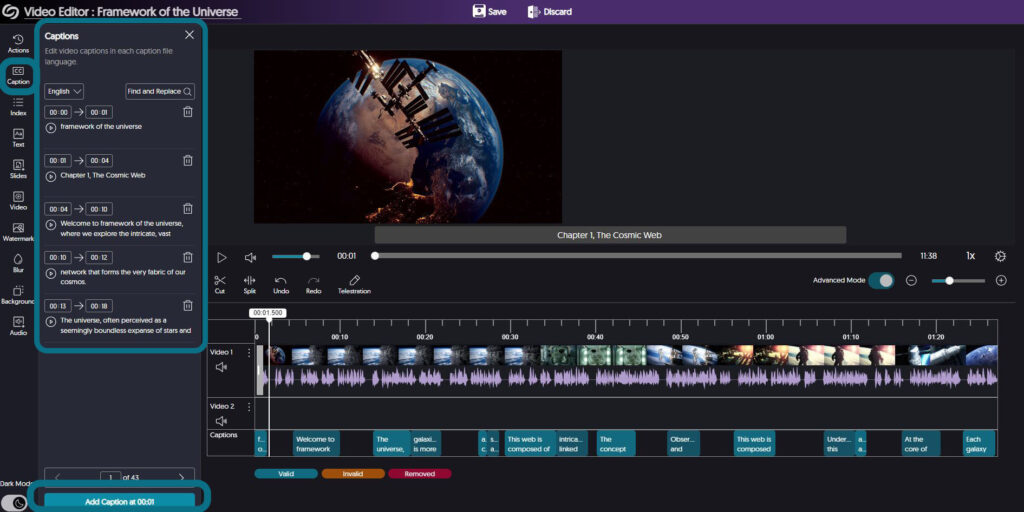
Screenshot of YuJa video editor showing captions panel for editing

High-quality, human-edited captions and audio descriptions form the bedrock of accessible video use. Learn more about YuJa’s advanced tools for ensuring your video content is accessible to all of your students. Facilitator: Diana Hernandez, YuJa


1:30 pm to 3:30 pm

Go for Green: Using Ally for Accessibility Guided Work Session

Screenshot of Ally Alt Text Generator in the Ally interface in Blackboard

In this hands-on work session, ask your questions, get pointers, and apply the Ally Accessibility tool to make your courses 100% accessible and meet the WCAG 2.1 AA federal accessibility standards for all instructional materials. Go for the Green in your Ally Accessibility Rating. Facilitator: Jennifer Bland, Learning Experience Coordinator


Students walking around an imaginary college landscape with buildings, books, and larger-than-life computers.

AI Spark Tips: Where AI and Learning Science Meet

In her most recent newsletter, “From Crutch to Coach?” Dr. Philippa Hardman, a scholar at the University of Cambridge, asks, does generative artificial intelligence (GenAI) “actually make us more capable, or just faster at outsourcing our thinking?

As we race to keep pace with AI-driven change, it can be hard to keep up with the latest developments in Learning Science, critical thinking, and AI. Hardman’s Learning Science Newsletter offers an incredibly thorough, up-to-date digest of research, tools, and strategies for using GenAI to improve learning.

If you are looking for one go-to source to stay informed on using AI to implement lessons from learning science, Hardman’s newsletter will serve you well.

Hardman’s free weekly newsletter offers an in-depth look at the links between learning science and instructional design. While some weeks’ posts are more useful for professional instructional designers, others offer a refreshing, research-informed take on productive and innovative uses of GenAI to foster critical thinking and promote metacognition.

AI-generated image of AI-enhanced view of a flower in a meadow full of other wildflowers

Below are some highlights from the past few months:

This image shows the Achievements tab in Blackboard Ultra, with a blue box around three course achievement badges for assignments like app development, creativity, design specification guru, and understanding software development principles.

Introducing Achievements in Blackboard Ultra

Continue reading “Introducing Achievements in Blackboard Ultra”