

As Gen AI (GAI) tools proliferated across the globe during the last few semesters, did you find yourself panicked, excited, or feeling a bit of both? Were you overwhelmed by the implications for academic integrity or overcome by a sense of wonder at the boundless potential to innovate our teaching, learning, and research? Your reactions are likely to guide your AI Use policies in your classrooms. Here’s how to communicate your expectations clearly to your students.
Continue reading “Navigating the Future of Learning with Gen AI”
AI Spark Tips: What Our Students Are Telling Us About Generative AI
At the recent USC Upstate AI Summit in September, participants asked what we know about our students’ view of Generative Artificial Intelligence (GenAI). An exploratory survey of USC Upstate students, faculty, and staff was conducted by members of the AI Training Subcommittee of the AI Strategic Council in Fall 2025. In it, 51% of students identified themselves as AI aware, with a basic understanding of tools they were just starting to test out.
Although the sample is too small to represent the entire student population, the responses offer valuable insights into the ways students use, view, and want to learn about GenAI. Faculty can build on what we know about students’ existing uses of GenAI to develop more sophisticated, critical, and ethical AI literacy skills.
How Students Are Using GenAI
The most common ways students reported using GenAI included brainstorming (64%), summarizing or explaining complex concepts (61%), and creating study tools like flashcards or practice tests (57%). Only 11% selected writing papers, though 43% chose outlining papers and 36% indicated they used GenAI to gather research.
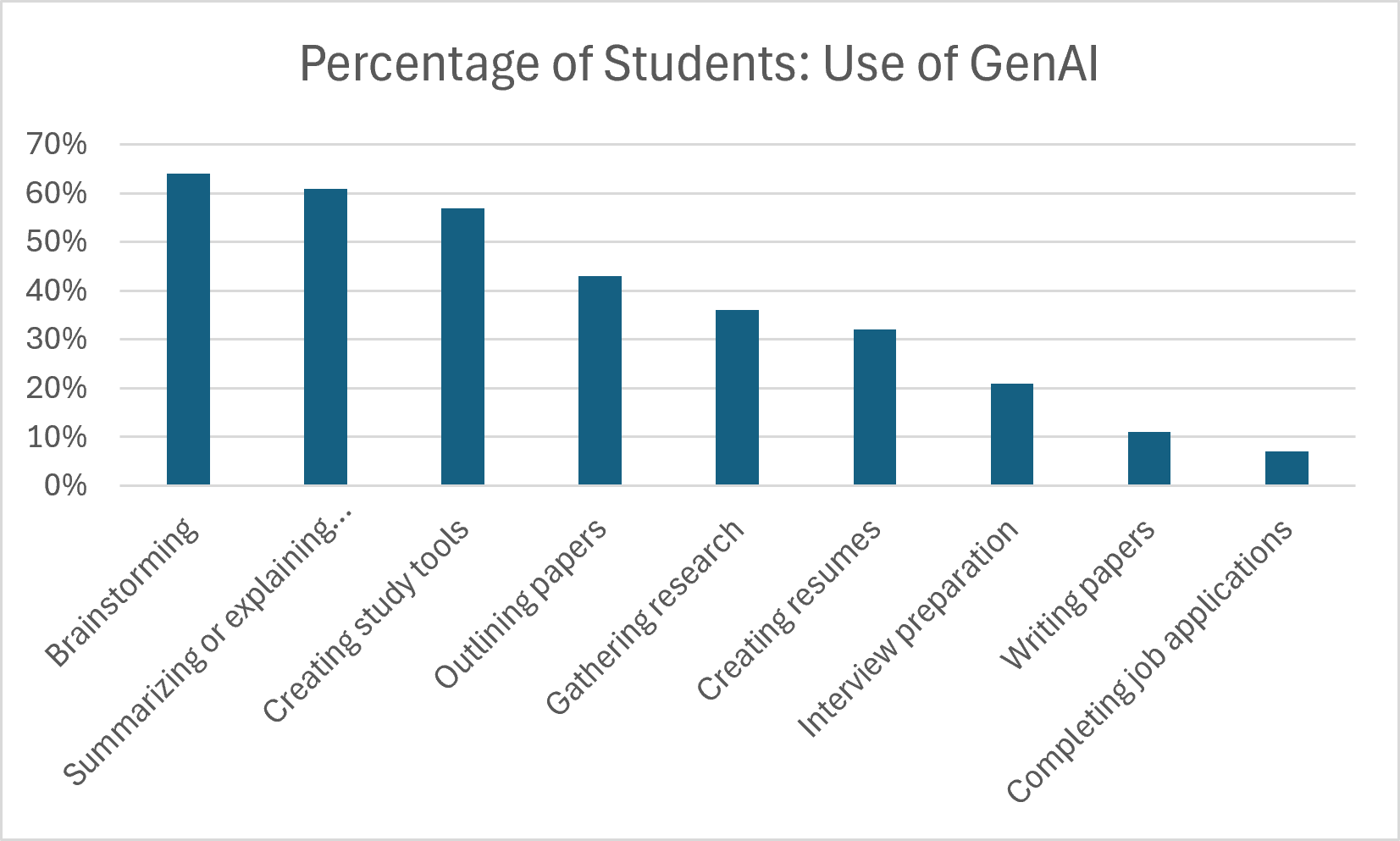
Interestingly, 32% noted they had used GenAI for creating resumes, but only 7% used it to complete job applications and only 21% reported using GenAI to assist with interview preparation.
These preliminary results suggest that students who use GenAI are largely employing it to support their learning rather than to replace independent thinking. However, their responses raise questions about whether they have developed more advanced AI literacy skills of critical evaluation, ethical decision-making, and transferring AI skills to professional contexts.
Although many students reported relying on GenAI for foundational materials, like summaries and explanations, outlines of ideas, and research, their greatest concerns centered on the potential consequences of AI use as a basis for learning and thinking:
- 88% were moderately or extremely concerned about accuracy and reliability.
- 83% were moderately or extremely concerned about losing academic skills, including critical thinking and writing.
- 83% were concerned about data privacy.
- 81% were concerned about academic misconduct.
The concerns students expressed about the potential costs of AI use align with key AI literacy principles about how AI systems work, how to recognize bias and hallucinations, how to critically evaluate and verify AI outputs for accuracy and bias, and how to maintain integrity by citing AI assistance.
These responses suggest opportunities to strengthen students’ AI literacy skills, both to make their current GenAI use as effective as possible and to engage in more high-impact, human-centered, ethical practices that can contribute to their academic and professional development.
How Students Want to Learn About GenAI
The core question for faculty becomes how to help students develop critical AI literacy skills. Among students who responded to questions about their experience with GenAI:
- 78% described themselves as just learning about GenAI or having only a basic understanding.
- 58% reported no weekly use of AI tools like ChatGPT, Copilot, Gemini, Claude, or Grammarly.
- 73% had not participated in any GenAI training or learning opportunities.
When the survey asked students what forms of GenAI training they would like to have, 65% said none. These results remind us that students have different levels of interest in AI, and that developing AI literacy should include opportunities to critically examine the technology rather than simply encouraging its use.
Among the training options offered, integrating AI into existing required courses and attending university-sponsored workshops were the most frequently selected, each chosen by 21% of respondents. Students were less likely to select dedicated AI courses, interactive games, or student organizations focused on AI.
More than any other type of support listed on the survey, students selected examples of appropriate AI use as the key to helping them feel more confident using GenAI.
- For example, a faculty member might demonstrate how ChatGPT.Edu can generate practice questions while also showing students how to verify sample answers against course materials. Or better yet, encourage metacognition by asking students to explain the concepts to a chatbot programmed to ask clarifying questions. Students can then reflect on where their explanations were strong and where they revealed gaps in understanding.
- An instructor may assign a research project that begins in class using GenAI in groups, then asks students to locate and verify the sources using the library or other credible sites. Then, show students how to design follow-up prompts to help them evaluate the sources’ credibility, accuracy, and relevance to the project or to find gaps and blind spots in their research.
- Faculty might build on students’ existing use of GenAI for brainstorming by asking students to refine prompts with greater context, solicit multiple possible responses and compare them, and explain which ideas they accepted or rejected and why.
Next Steps Toward AI Literacy
As we incorporate AI into our academic settings, it is important to continue to invite student perspectives on how they can best learn about this technology that is bringing waves of change to society. Consider starting up a conversation rooted in the needs of your discipline and your course. Then, guide students toward higher levels of AI literacy that will help them make critical evaluations and ethical decisions in your course and beyond.
We can start with a simple question:
When does AI help you learn, and when might it get in the way?
AI Spark Tips: Using AI to Create a Blackboard Photo Roster
Some of the greatest productivity benefits of AI can be found in tasks you are performing at the upper range of your skill set. AI can help you level up.
When you know enough to accomplish a task, but not enough to do it confidently or efficiently, AI can provide you with step-by-step guidance to speed up your problem-solving process.
The key is to ask for step-by-step instructions. ChatGPT often explains its reasoning by default, but you can also ask for explanations that meet you at your particular skill level.
An AI Breakthrough Example: Photo Roster
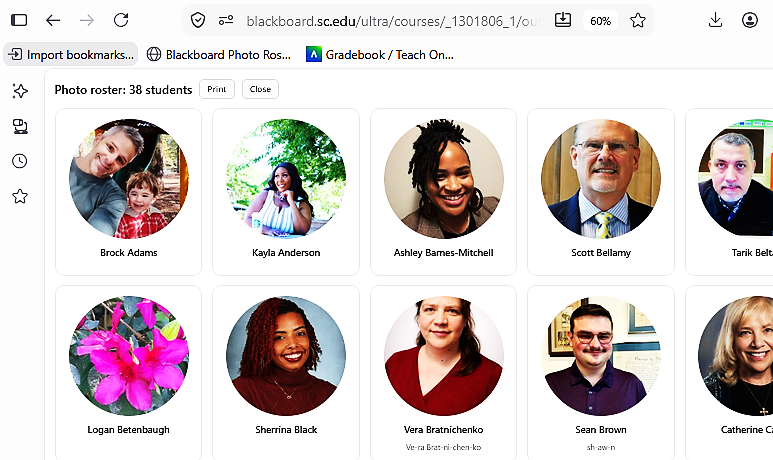
For three years, we’ve been facing the challenge of accessing a useful Photo Roster in Blackboard or Self-Service Carolina. As instructors, we need a page of images large enough to use for class attendance, while preserving the preferred names and pronunciation notes that these systems provide.
After doing some initial experiments, I knew the coding was simple, but not quite simple enough for my skills. No staff member with the right skill set had the dedicated time to provide the solution.
Enter ChatGPT
With ChatGPT, I was able to explain the problem, offer an example of my initial solution, then work iteratively to tweak the code until I had exactly the photo roster display I wanted. I could run a test and share a screenshot of the output to identify the right line to target in the code.
The end result is a Blackboard Photo Roster Bookmarklet available to anyone who accesses Blackboard Ultra courses through a web browser.
For me, javascript coding was the skill I was hoping to “level up,” but the same iterative, step-by-step process can be used for creating complex branching in surveys, automating data collection across Excel spreadsheet sources, or any other task that can be broken down and tested with images of outputs.
Without ChatGPT, I would have to study several more advanced skills to decipher the complete code for the existing roster page. Then, I could apply that knowledge to identify just the areas I needed to accomplish my goal. With ChatGPT, I was able to use GenAI to determine the targets for my very focused changes to the display settings. I can learn the rest of the details when I am ready to level up again.
Using AI to Expand Universal Design for Learning
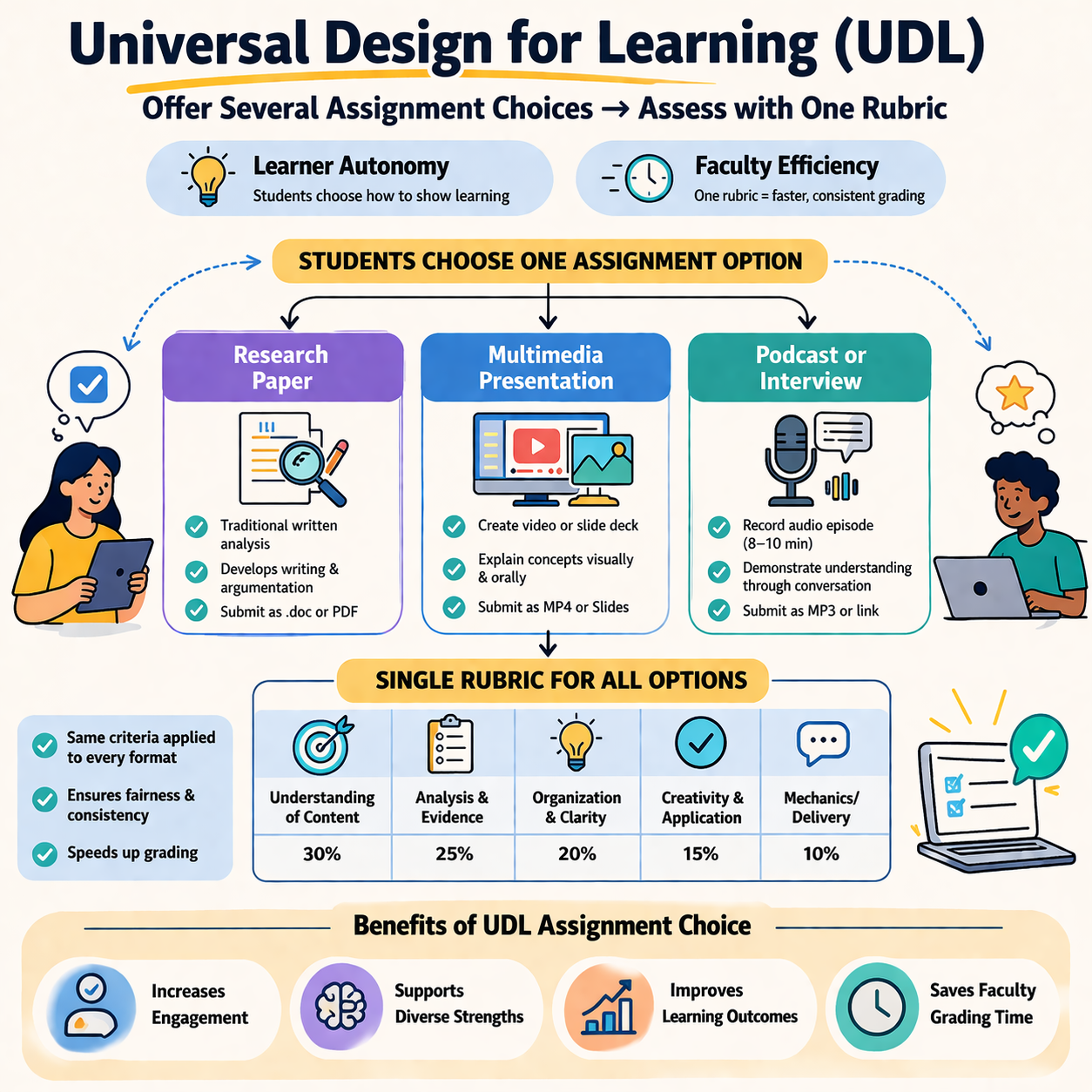
Over the past several years, USC Upstate faculty have worked diligently to revise and update course materials and are well prepared to meet the April 2026 WCAG compliance deadline. These efforts have resulted in more accessible PDFs, PowerPoint presentations, documents, images, and videos, expanding access to barrier-free course content to a wider range of students. As we build on this important technical foundation, we also have opportunities to think more broadly about accessibility in course design, including how emerging practices like Role, Context, and Task Prompt Engineering can expand the adoption of more Universal Design for Learning practices.
Continue reading “Using AI to Expand Universal Design for Learning”
AI Resilient Learning is All Around Us
Thinking aloud is a simple yet powerful cognitive tool that anyone can use. When students verbalize their thinking process, they slow down, clarify their understanding or misunderstanding, and make their implicit knowledge explicit. They’re not just giving an answer; they are explaining the how and the why of the answer.
Continue reading “AI Resilient Learning is All Around Us”
AI Spark Tips: Increasing Accessibility with AI
As all public US higher education institutions embrace our digital accessibility upgrade, GenAI tools can help instructors tackle some of the most challenging images and documents.
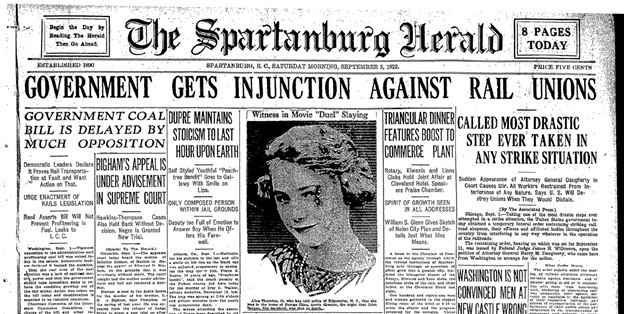
GenAI accessibility checking is already embedded in Microsoft Word, PowerPoint, and the Blackboard Learning Management System (LMS) to help detect common issues and generate alternative text for images. But those tools are less successful at converting screenshots of complex tables or flyers with extensive text. None of the built-in features will automatically boost the contrast in your images when words appear in a colorful design without enough distinction between background and text colors.
Enter ChatGPT.
Users can tap into ChatGPT’s robust image recognition capabilities to extract text from images, scanned PDFs, and even screenshots of blurred edges of old photocopies. Then, that text can be pasted directly into your course as a long description for a complex image. AI-recognized text can also be used to edit garbled or missing text in a PDF.
To use ChatGPT as a high-powered Optical Character Recognition (OCR) tool, here’s your starter prompt:
- “Please OCR this image, correcting for spelling and formatting while maintaining the original text” [necessary to avoid AI-initiated editing or summarizing].
- Upload or copy and paste a screenshot of your image or of the problematic section of your PDF document. Text sections work best for multi-column documents.
- Then, provide additional instructions if you want the content formatted as a table, as MathJax code, or another specialized format.
The image contrast issue is a bit more complex. ChatGPT does not measure and adjust colors scientifically; it provides you with the most probable image that fits your description. This strategy works best with medium-complexity images where simpler tactics fail. Complex images may be addressed by providing long descriptions or finding an alternative image with a better balance of image, color, and text.

To use ChatGPT to make images meet the color contrast standards needed for users with color blindness or other vision needs, here’s your starter prompt:
- “I need to make my images meet the 1:4.5 color contrast ratio of WCAG 2.1AA standards. Please enhance this image to reach that high-contrast standard. Maintain accuracy of all text in the image.”
- Upload or copy and paste a screenshot of your image. High-quality uploads work best.
- Then, provide additional instructions about preferred colorways or areas of the images in particular need of remediation.
- You will likely need to refine your prompt to meet the needs of your particular image.
Bonus Tip
Sometimes the low-tech solution can be the fastest. To edit simple images (fewer colors, less text), try adjusting the color saturation or increasing the contrast, or sharpness in Microsoft Picture Format in Word or PowerPoint or Paint or Photos apps for standalone images. When making new images from screenshots in your browser, enable the high-contrast browser extension before you capture your screen.
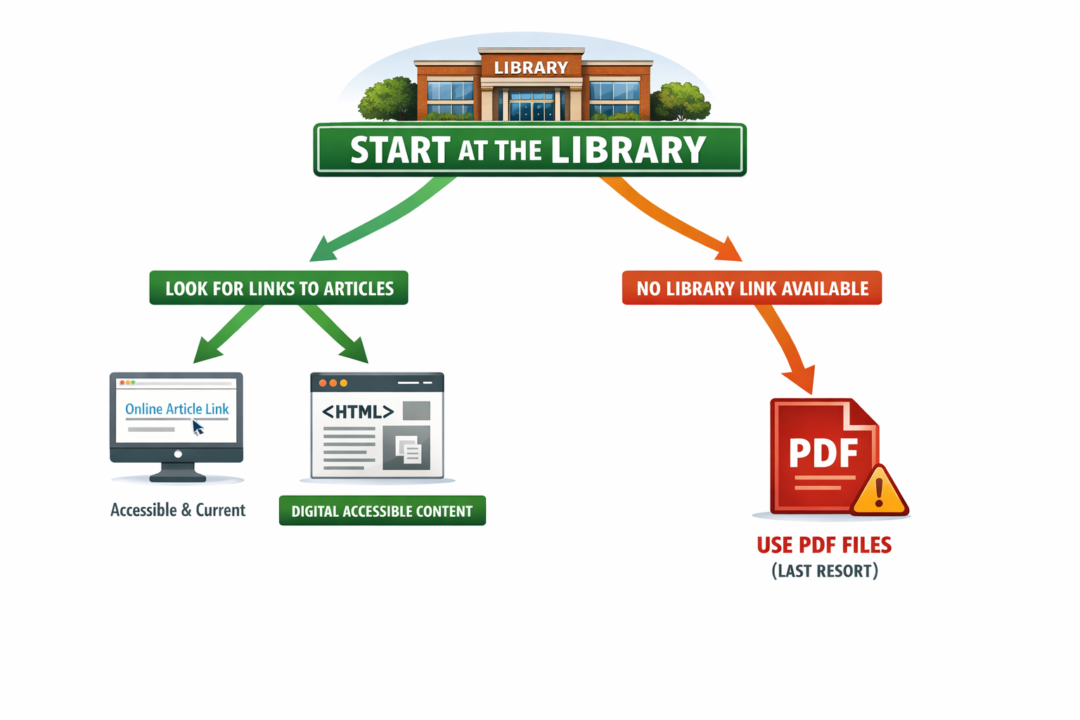
Start at the Library to Achieve Your Course Accessibility Goals
When selecting materials for your courses, where you start can make all the difference. Beginning your search at the library not only saves time, but it also helps ensure students have current, accessible content to supplement your instruction.
Start with Library Links
Academic libraries are the best place to start looking for course readings. Librarians can help you identify high-quality, current articles, open-access resources, and other digital content available through institutional subscriptions and thoughtful curation. For this reason, faculty may consider using stable library links instead of using PDF files. Many publishers provide full-text or HTLM versions of articles that can be read online and are more accessible for screen readers and assistive technologies. HTML is built using semantic markup (e.g., specific tags for headings <h1> to <h6>, paragraphs <p>, and lists) that provides an organized and logical structure for screen readers to interpret and navigate content efficiently. When we scan articles and turn them into PDFs, they become images that can be tagged, but improper or missing tags often disrupt the reading order or make the content unreadable for assistive technology.
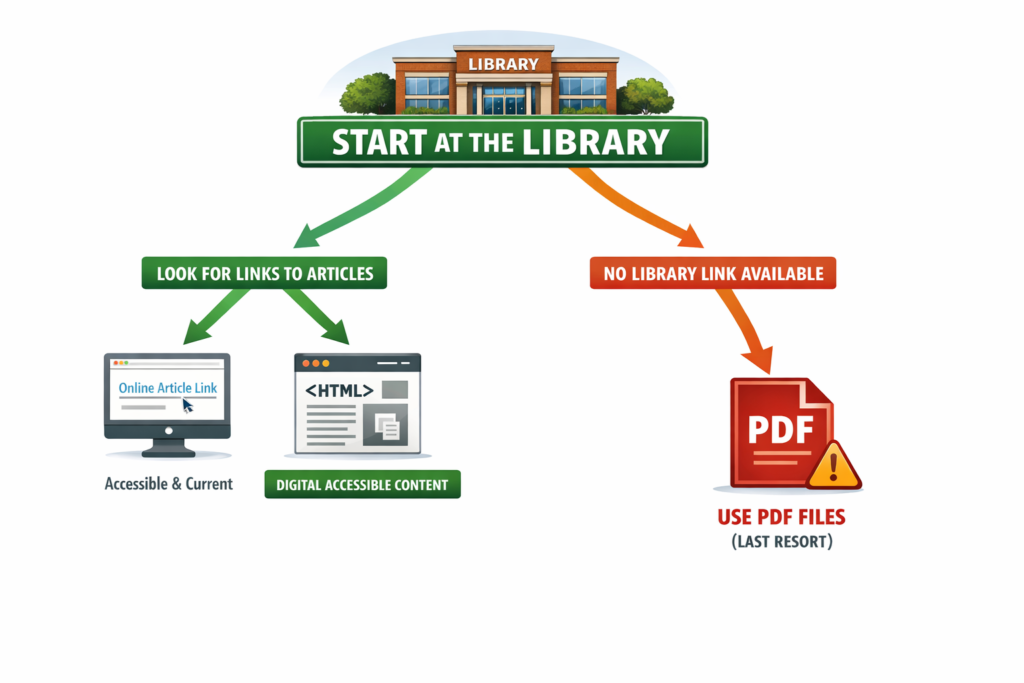
Image full description: The flowchart above begins with a green library icon and the message “Start Your Search at the Library,” then splitting into two paths. The preferred left path (green) guides users to “Find Article Links,” leading to accessible online content such as HTML articles and full-text links, highlighted as “Digital & Accessible.” The right path (red) appears only when no link is available and directs users to use PDF files as a last resort, emphasizing the need to edit them for accessibility.
Searchable
HTML articles are properly formatted and linked to the full text, allowing students to search within the text, adjust display settings, use assistive tools, and activate any plug-in preferences. HTLM formats will also update over time as academic publishers work to achieve compliance with WCAG as well.
Recently, I was reading an article in the EBSCO database, and I noticed the toolbar across the top right of the page. In the toolbar, there are a headphone icon and an accessibility icon at the far right. The headphones allow users to listen to the article.

Image full description: The image shows a horizontal toolbar with a series of icons arranged side by side against a light gray background. From left to right, the icons include a bookmark symbol, a quotation mark, a camera with a plus sign, a curved arrow pointing right, a download symbol, a printer, a globe, a list with two lines, a set of headphones, and a circular icon with a person surrounded by a blue ring indicating accessibility options.
Accessibility Icon
The accessibility icon, however, launches a form that allows users to request “content remediation.” According to the website, content remediation transforms content into more accessible formats, ensuring compliance with accessibility standards and compatibility with assistive technologies. Remediated content can be requested as a Word document or as HTLM and will be returned to the user in 3-5 days. I tried this out and was very glad to receive a more accessible version of the article a few days later.
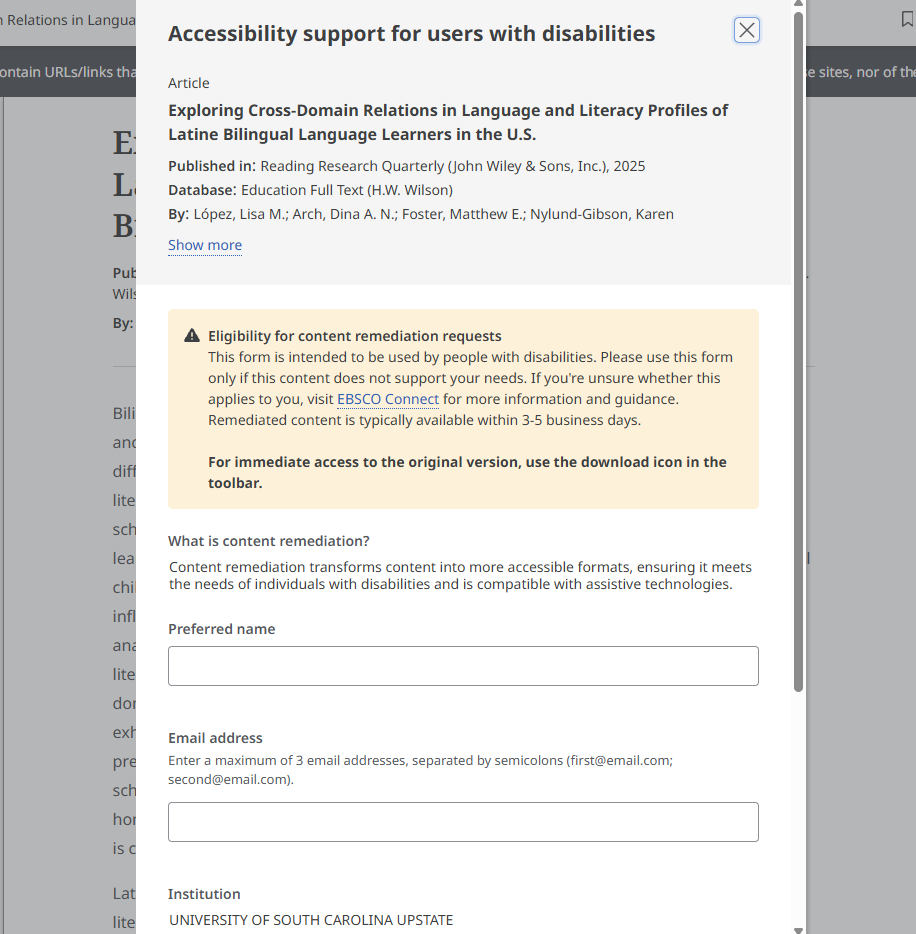
Image full description: The Ebsco pop-up window titled “Accessibility support for users with disabilities” appears over a text-heavy webpage. The pop-up references an article titled “Exploring Cross-Domain Relations in Language and Literacy Profiles of Latine Bilingual Language Learners in the U.S.” A section marked with a triangle icon containing an exclamation point explains eligibility and how to request accessible content formats.
Use PDFs Sparingly
If an article cannot be linked through the library, PDF files may be necessary, but they really should be the exception, not the rule. Scanned PDF files often require significant remediation, such as OCR and tagging, to meet accessibility standards. When PDFs must be used, plan for additional time to ensure they are accessible.
If the PDF has simple formatting, you may be able to use Blackboard’s built-in “convert a file” document feature, which converts the selected file into the Blackboard Ultra Document format. Supported file types include PDF, PowerPoint (ppt, pptx, pps), and Word (doc, docx, odt). Be sure to review the converted content for accuracy.
Scanning book chapters and sharing them as PDF files is ideally a thing of the past and may violate copyright laws. If there are text materials you can’t find anything comparable to, work with the library to request access to ebooks or other resources. Visit the USC Upstate Copyright LibGuide to learn more about copyright and fair use in higher education.
Support
CAIFS also has several accessibility trainings coming up with Celena and Jennifer on Word documents and Adobe PDFs. The Word document presentation covers Word as well as Powerpoint, email, and video captioning. To sign up for those trainings, please review the Accessibility Matters Form and choose any this spring that work with your schedule.
You can also log into Blackboard and visit the CAIFS professional development course and explore the guidance on Word and Adobe if none of the training times work for you. Additionally, if you’d like assistance from the CAIFS accessibility team, please complete our Accessibility Assistance Form and we’ll reach out and set something up.
A Small Shift with a Big Impact
By starting at the library, prioritizing links, and choosing accessible digital formats, faculty can create courses that are easier to navigate, more inclusive, and more sustainable. And when PDFs are truly needed, support is available through CAIFS as you develop your accessibility skills and make your online and face to face course material more inviting and welcoming for all learners.