
As all public US higher education institutions embrace our digital accessibility upgrade, GenAI tools can help instructors tackle some of the most challenging images and documents.
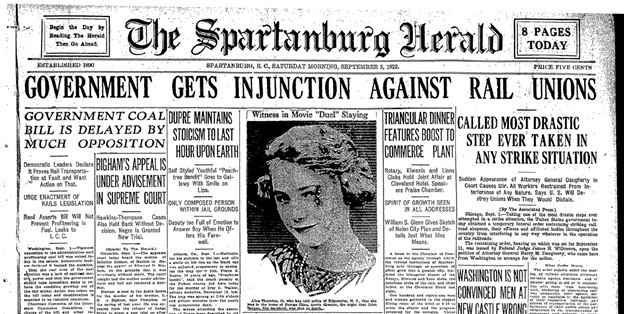
GenAI accessibility checking is already embedded in Microsoft Word, PowerPoint, and the Blackboard Learning Management System (LMS) to help detect common issues and generate alternative text for images. But those tools are less successful at converting screenshots of complex tables or flyers with extensive text. None of the built-in features will automatically boost the contrast in your images when words appear in a colorful design without enough distinction between background and text colors.
Enter ChatGPT.
Users can tap into ChatGPT’s robust image recognition capabilities to extract text from images, scanned PDFs, and even screenshots of blurred edges of old photocopies. Then, that text can be pasted directly into your course as a long description for a complex image. AI-recognized text can also be used to edit garbled or missing text in a PDF.
To use ChatGPT as a high-powered Optical Character Recognition (OCR) tool, here’s your starter prompt:
- “Please OCR this image, correcting for spelling and formatting while maintaining the original text” [necessary to avoid AI-initiated editing or summarizing].
- Upload or copy and paste a screenshot of your image or of the problematic section of your PDF document. Text sections work best for multi-column documents.
- Then, provide additional instructions if you want the content formatted as a table, as MathJax code, or another specialized format.
The image contrast issue is a bit more complex. ChatGPT does not measure and adjust colors scientifically; it provides you with the most probable image that fits your description. This strategy works best with medium-complexity images where simpler tactics fail. Complex images may be addressed by providing long descriptions or finding an alternative image with a better balance of image, color, and text.
To use ChatGPT to make images meet the color contrast standards needed for users with color blindness or other vision needs, here’s your starter prompt:
- “I need to make my images meet the 1:4.5 color contrast ratio of WCAG 2.1AA standards. Please enhance this image to reach that high-contrast standard. Maintain accuracy of all text in the image.”
- Upload or copy and paste a screenshot of your image. High-quality uploads work best.
- Then, provide additional instructions about preferred colorways or areas of the images in particular need of remediation.
- You will likely need to refine your prompt to meet the needs of your particular image.
Bonus Tip
Sometimes the low-tech solution can be the fastest. To edit simple images (fewer colors, less text), try adjusting the color saturation or increasing the contrast, or sharpness in Microsoft Picture Format in Word or PowerPoint or Paint or Photos apps for standalone images. When making new images from screenshots in your browser, enable the high-contrast browser extension before you capture your screen.