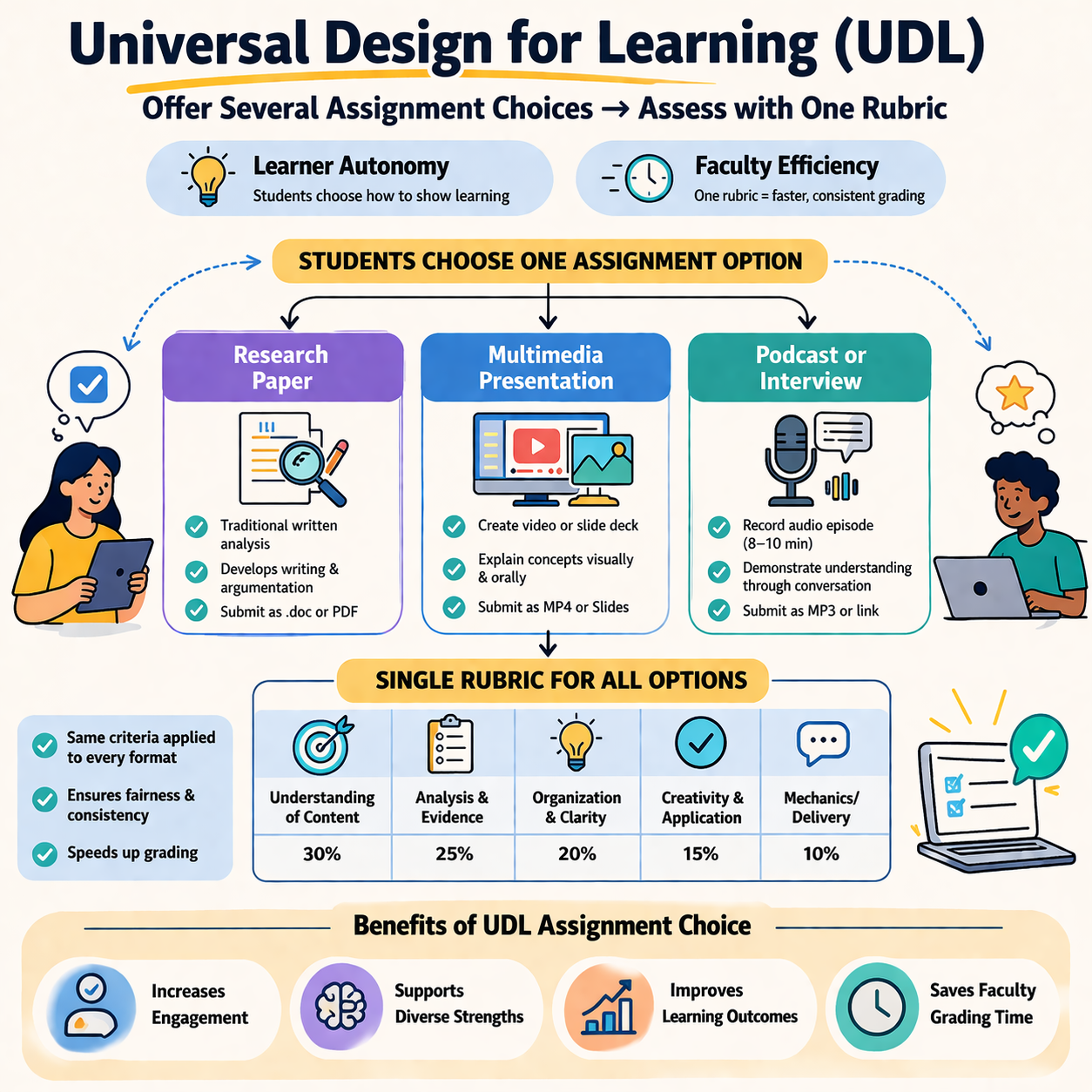
Over the past several years, USC Upstate faculty have worked diligently to revise and update course materials and are well prepared to meet the April 2026 WCAG compliance deadline. These efforts have resulted in more accessible PDFs, PowerPoint presentations, documents, images, and videos, expanding access to barrier-free course content to a wider range of students. As we build on this important technical foundation, we also have opportunities to think more broadly about accessibility in course design, including how emerging practices like Role, Context, and Task Prompt Engineering can expand the adoption of more Universal Design for Learning practices.
Continue reading “Using AI to Expand Universal Design for Learning”
AI Resilient Learning is All Around Us
Thinking aloud is a simple yet powerful cognitive tool that anyone can use. When students verbalize their thinking process, they slow down, clarify their understanding or misunderstanding, and make their implicit knowledge explicit. They’re not just giving an answer; they are explaining the how and the why of the answer.
Continue reading “AI Resilient Learning is All Around Us”
AI Spark Tips: Increasing Accessibility with AI
As all public US higher education institutions embrace our digital accessibility upgrade, GenAI tools can help instructors tackle some of the most challenging images and documents.
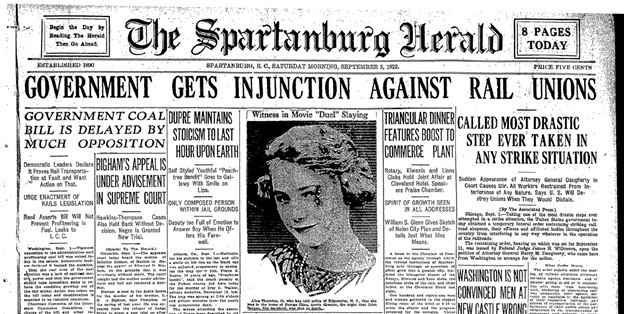
GenAI accessibility checking is already embedded in Microsoft Word, PowerPoint, and the Blackboard Learning Management System (LMS) to help detect common issues and generate alternative text for images. But those tools are less successful at converting screenshots of complex tables or flyers with extensive text. None of the built-in features will automatically boost the contrast in your images when words appear in a colorful design without enough distinction between background and text colors.
Enter ChatGPT.
Users can tap into ChatGPT’s robust image recognition capabilities to extract text from images, scanned PDFs, and even screenshots of blurred edges of old photocopies. Then, that text can be pasted directly into your course as a long description for a complex image. AI-recognized text can also be used to edit garbled or missing text in a PDF.
To use ChatGPT as a high-powered Optical Character Recognition (OCR) tool, here’s your starter prompt:
- “Please OCR this image, correcting for spelling and formatting while maintaining the original text” [necessary to avoid AI-initiated editing or summarizing].
- Upload or copy and paste a screenshot of your image or of the problematic section of your PDF document. Text sections work best for multi-column documents.
- Then, provide additional instructions if you want the content formatted as a table, as MathJax code, or another specialized format.
The image contrast issue is a bit more complex. ChatGPT does not measure and adjust colors scientifically; it provides you with the most probable image that fits your description. This strategy works best with medium-complexity images where simpler tactics fail. Complex images may be addressed by providing long descriptions or finding an alternative image with a better balance of image, color, and text.

To use ChatGPT to make images meet the color contrast standards needed for users with color blindness or other vision needs, here’s your starter prompt:
- “I need to make my images meet the 1:4.5 color contrast ratio of WCAG 2.1AA standards. Please enhance this image to reach that high-contrast standard. Maintain accuracy of all text in the image.”
- Upload or copy and paste a screenshot of your image. High-quality uploads work best.
- Then, provide additional instructions about preferred colorways or areas of the images in particular need of remediation.
- You will likely need to refine your prompt to meet the needs of your particular image.
Bonus Tip
Sometimes the low-tech solution can be the fastest. To edit simple images (fewer colors, less text), try adjusting the color saturation or increasing the contrast, or sharpness in Microsoft Picture Format in Word or PowerPoint or Paint or Photos apps for standalone images. When making new images from screenshots in your browser, enable the high-contrast browser extension before you capture your screen.
AI Spark Tips: Using Copilot to Free up Time for Real Interactions
When we talk about generative artificial intelligence (GenAI), it can be easy to focus on sensational stories about deepfakes, AI relationships, or humans offloading so much of their work that AIs are just summarizing and evaluating other AI’s reports. The greatest impact of AI isn’t in the splashy story, though. It’s in the small, AI-enabled changes that can free up hours of time that we can redirect to building human relationships.
Microsoft Copilot doesn’t get as much press as ChatGPT, but as a workplace productivity tool, it can make a meaningful dent in your workload. Copilot is built directly into Microsoft 365 tools like Outlook and Word, making it easy to use in everyday tasks.

Many faculty and staff are using Copilot to draft weekly course announcements based on your course schedule, identify action steps from documents or emails, build email templates to automate interactions, and turn bullet points into polished messages they can quickly edit and personalize.
Try Today
Click the Copilot button in any Word document, PowerPoint, Excel file, or Outlook email to access embedded Copilot chat. Then, use preprogrammed prompts or ask your own.
The suggestions do not need to change your voice to streamline your workload. “What are some ways I could improve this document?” can point out suggestions for reordering, eliminating redundancy, and even just formatting for greater clarity.
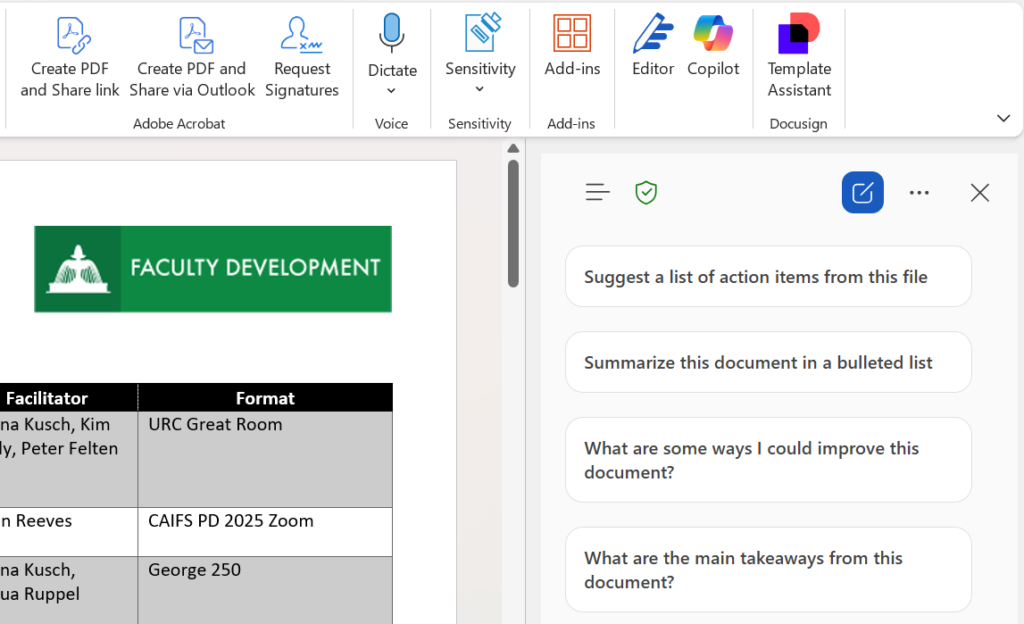
In the calendar document pictured above, I asked Copilot to create an invitation to faculty participants at my university for each item on the calendar. It compiled all the logistical details, which I can cut and paste directly into emails I can pre-schedule in Outlook. I didn’t have to worry about Copilot hallucinating events because this chat is already focused on my Word document. Try out a similar prompt with the Schedule of Assignments in your syllabus.
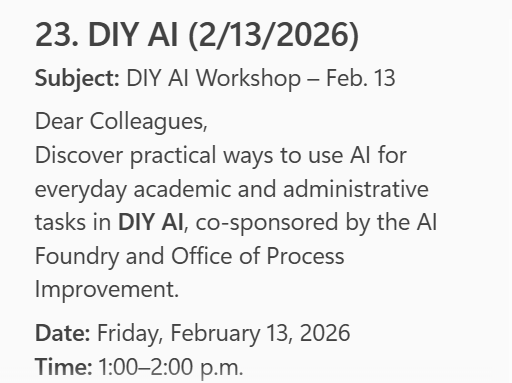
Because it’s embedded in Microsoft tools, Copilot can be more aware of the context of your task and can save you time clicking between windows and applications.
Key Benefit: Accessibility
Working natively within Microsoft applications, Copilot generates more accessible content than materials created in another AI then exported or saved to Microsoft formats.
ChatGPT-generated presentations or Canva templates, for instance, can lose all master slide formatting and even generate language errors or other issues with file properties when exported to PowerPoint. Bringing the exported PowerPoint up to accessibility standards can lose a lot of the time you gained by generating your content.
In contrast, Copilot generates PowerPoints and Word documents with appropriate headings, styles, and themes, so your Accessibility Check does not add time to your workflow.
The Takeaway
AI use doesn’t need to be dramatic to be powerful. Sometimes, reclaiming time is the most meaningful move you can make.
AI Spark Tips: From Curiosity to Confidence: Improving Assignment Instructions with the OLC Course Review Assistant GPT
If you’re curious about ChatGPT.Edu but haven’t quite figured out how it fits into your teaching, you’re not alone. AI suggestions for course materials can fall flat when using a generic AI, but you may be surprised by what you find when you use a customized GPT designed by instructors for instructors.
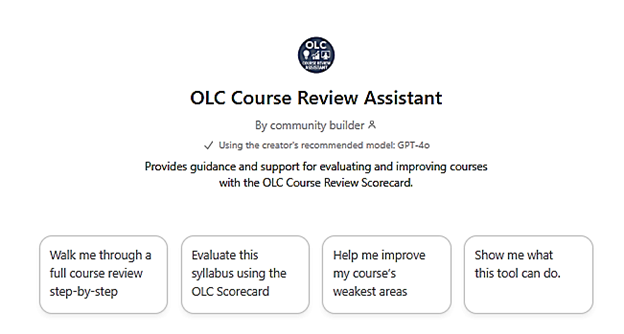
The Online Learning Consortium (OLC) Course Review Assistant GPT is a first-of-its-kind chatbot trained on education research in instructional design and online and hybrid learning and tuned to OLC’s evidence-based scorecards to improve course quality.
A Strong First Use Case: Refining What You Already Have
Instead of tackling a full course review, start with something familiar: assignment instructions.
Try using the OLC Course Review Assistant in ChatGPT.Edu to:
- Clarify assignment instructions in student-friendly language
- Ensure that assignments are designed to measure your course learning outcomes
- Break down assignments into step-by-step checklists or guides
- Create rubrics for grading assignments based on your instructions and outcomes
Example prompt:
“My course learning outcomes are [PASTE FROM SYLLABUS]. First evaluate how well my assessments align to the course learning objectives. Then, offer any suggestions for improving the assignment instructions below. Flag any areas in the instructions that might confuse students.” [Copy and Paste or Upload Your Current Assignment]
Review the suggestions for clarifying your instructions. If they help, keep them. If they don’t, you’ve learned something without risk.
Based on its training in instructional design, the OLC Course Review Assistant will ask you follow up questions that may give you new ideas for supporting your students’ learning with assignment examples, guides, rubrics, and other clarifying features.
Getting Started with the OLC Course Review Assistant GPT
USC Upstate is an OLC member. To get started claim your account by going to the OLC homepage, then click on “Create an Account.” Please use your institutional email address as your username as this will link you to our institutional membership.
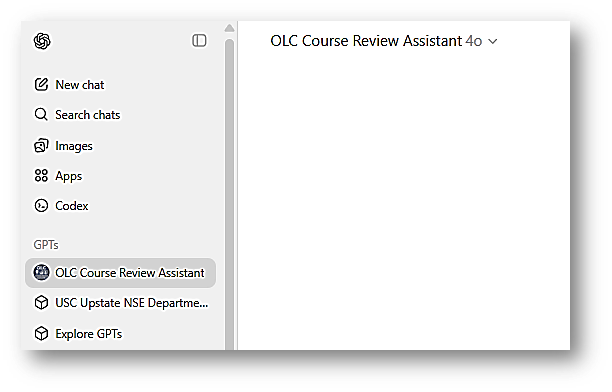
Once your account is active, you may explore the OLC site, or go directly to the OLC Course Review GPT through your USC Upstate ChatGPT.Edu account. Go to ChatGPT (also available in the SpartanHub), then login by entering your USC Upstate email address in the email box to use single sign on.
In the upper-left of your screen, you’ll see the OLC Course Review Assistant GPT button. Click it and begin interacting with the bot.
Final Thought
You don’t need to redesign your whole course to begin using AI thoughtfully to improve student learning outcomes. One low-stakes, repeatable use of a context-specific GPT can be enough to help you move from curiosity to confidence.
AI Spark Tips: When Students Ask at 2 a.m.
How Blackboard’s AVA Supports Learning Without Replacing You
We’ve all done it. We know the answer is in the user guide or instruction manual, but we don’t want to skim the whole document. Students feel the same way about the course syllabus. They know the answer is in the syllabus, but they don’t know where it is or what to look for.
Blackboard’s AI Virtual Assistant (AVA) is designed to provide just-in-time automated answers about your course and syllabus information, so you don’t have to. You write your syllabus and course instructions into your Blackboard course, and AVA looks up the answers to students’ logistical questions based on your materials.
What Is AVA?
Blackboard’s AVA is a built-in AI agent designed to work only within the closed system of your Blackboard course. It answers objective questions posed in natural language by referring students to specific content you have added to your course. It does not share the information outside your course to train AI models, and it does not search beyond your content to make up answers that sound right.
AVA acts like a self-writing FAQ that students can access anytime, any place.
How Do Students Use AVA?
If you opt to enable AVA in your course, students access AVA when they send you a message through Blackboard. After they click Send on a new message or Reply to an existing message thread, AVA introduces herself.

When students ask about due dates, course policies, assignment instructions, and other objective questions, AVA provides answers and direct links to the source of your course information. The complete record of this interaction is saved for your review within the Message thread in your Blackboard course.
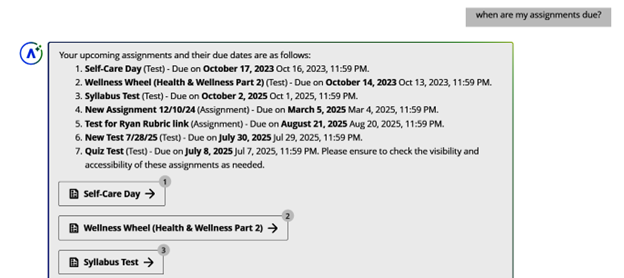
For example, a student could ask if any assignments are due tomorrow. Or they could ask for a list of assignment due dates. AVA searches your assignment due dates and compiles a list of course links.
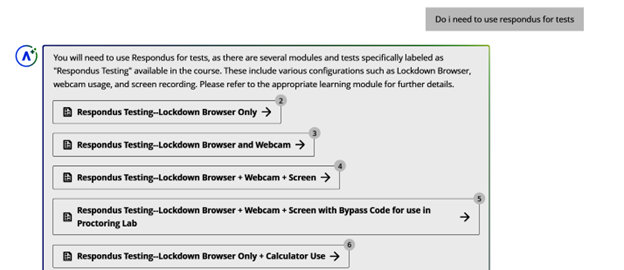
AVA will intuit some answers, but only if the link to course materials is very clear. For instance, I asked whether Respondus monitoring was required for tests, and AVA concluded it was based on the number of references to Respondus within the course.
AVA did not, however, offer answers that were not directly available within the course materials provided by the instructor. My test course did not include a syllabus with a grading breakdown, so when I asked how much an assignment counted toward the Overall Grade, AVA directed me to wait for the instructor’s response.

As you can see from the sample interactions, AVA is not “chatty” or personal. She does not make judgment calls nor offer a personality that may clash with your instructor presence in your course. She’s simply a clear, formal, automated messenger who directs students to the answers you have already posted in your course. Even at 2 a.m.
Getting Started with AVA in Your Course
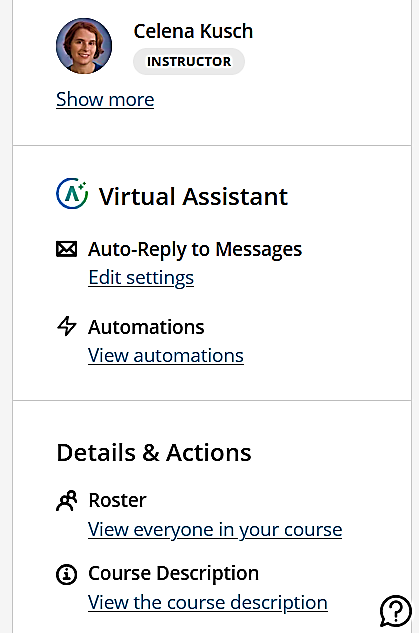
AVA is disabled in your class by default. Instructors have the option to enable AVA directly from the Details and Actions area of the Course Content page.
Under the Virtual Assistant heading on the main Course Content page, instructors may click “Edit Settings” to enable or disable AVA messaging.
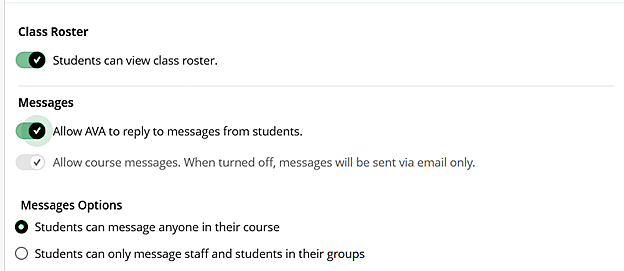
The Edit Settings button will take you to the Course Settings options, where you may toggle the switch labeled “Allow AVA to reply to messages from students.”
Instructors who wish to use AVA must opt in to using this feature in each course by editing those settings.
Final Thoughts
AVA is a new student-facing AI feature in Blackboard. Its prompting is cautious and careful.
It effectively answers very straightforward questions about course logistics 24/7, and it provides a record of interactions for you to expand upon later.