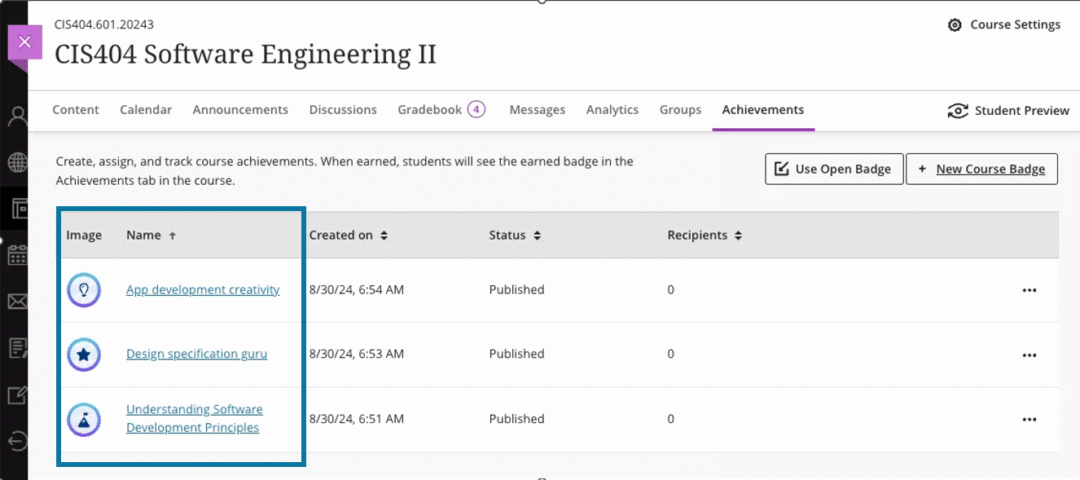
If you’re looking for a fun, motivating way to boost student engagement, consider using the new Achievements feature in Blackboard Ultra. From the Achievements tab, faculty can create course achievement badges and set criteria for student success. While faculty can review which students have earned a course badge, students can also see the requirements for how to earn a badge and monitor their earned and unearned badges.
Continue reading “Introducing Achievements in Blackboard Ultra”
AI Spark Tips: Teaching through Real World Connections
When students see the relevance of course content in their own lives, they are often more motivated to study, strive for excellence, and succeed. Introducing practical applications can help students connect abstract disciplinary concepts to the kinds of questions they are already asking in real world contexts.
Specialized Generative Artificial Intelligence (GenAI) tools, like the Khanmigo Real World Text Generator or NotebookLM’s podcast-style audio overview, offer inspiration for instructors to integrate examples and cases that increase relevance and motivation.
Khanmigo Real World Text Generator
Khanmigo is an AI Learning Tool offered free to educators by Khan Academy. It is trained on relevant course materials for a range of educational levels, include introductory college courses. Instructors can use the Real World Context Generator or the Make It Relevant lesson planner to introduce challenging course concepts or end each unit with a focus on career relevance.
NotebookLM Podcast-Style Audio Overview
Google’s NotebookLM tool offers a customized, multimedia AI chat for summarizing and asking questions about a collection of resources you select. One of its most exciting features, however, is the Audio Overview, which can synthesize your chosen materials into an engaging podcast-style discussion designed to link course content to real-world contexts.
Take this example podcast generated from a math problem about calculating speed at an instant in time. The math problem includes the formula for instantaneous speed, a word problem about a bicycle, several values for time and distance, and a question for students to solve.
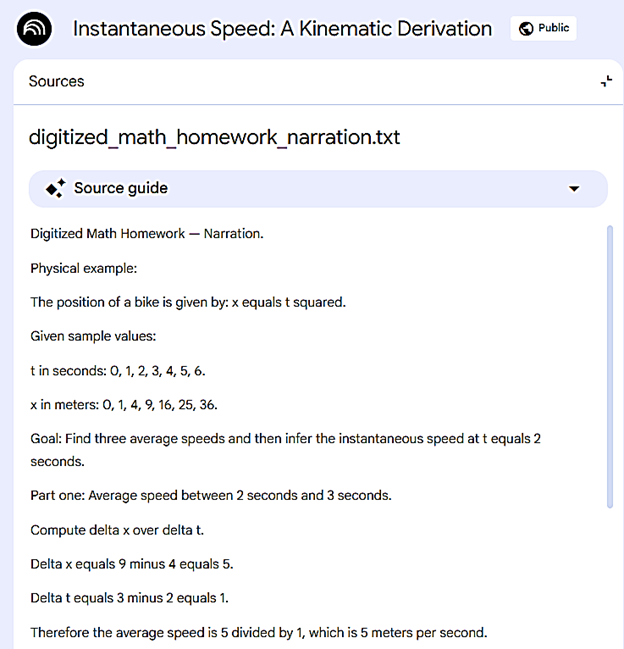
First, I generated a text-based narration by uploading a sample handwritten math problem and solution into ChatGPT.edu and asking it to create a human-centered narration of the problem. Then, I loaded the narration text into NotebookLM and asked for a podcast-style overview focused on applying the source to a real-world context. Inspired by just the mention of the bicycle, NotebookLM created an animated discussion of the principles behind the problem and their real-world applications.
A student may study the problem-solving notes by passively reading for a few minutes, but they might listen to an engaging podcast for 10 minutes while working out the problem alongside the AI “hosts.”
Bonus Tip:
Increase the accessibility of your NotebookLM podcast by download the audio file from NotebookLM and uploading it to your YuJa or Panopto media management account. YuJa or Panopto will automatically transcribe the audio for you, and you can edit the transcript to ensure your podcast meets the accessibility standards for high-quality captions and transcription.
AI Spark Tips: Using AI to Improve Image Accessibility
Faculty Spotlight: Dr. Akash Garg, Instructor of Biology
The CAST guidelines for Universal Design for Learning emphasize the importance of offering learners multiple ways to perceive information, including images and visualizations for sighted students and text-based descriptions of that content for students who engage with course materials with screen readers or audio formats.
In courses that make extensive use of images, providing text-based descriptions (called alt text) can be a time-consuming–though rewarding–process.
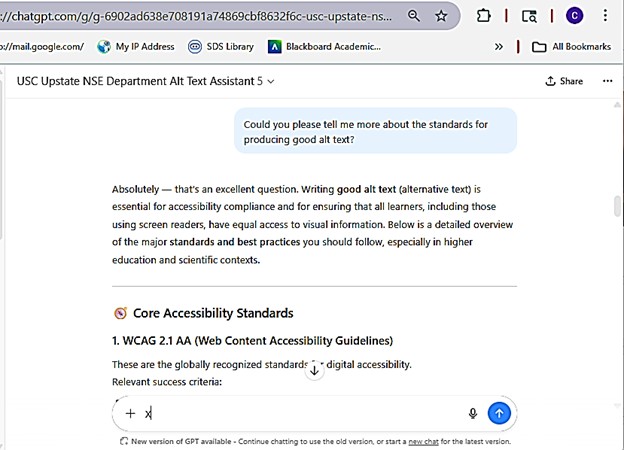
At USC Upstate, Dr. Akash Garg, Instructor of Biology, applied his AI developer skills to tackling the alt text challenge. He has launched the USC Upstate NSE Department Alt Text Assistant. Login with your USC Upstate ChatGPT.Edu account to access.

Inspired by the Arizona State University Image Accessibility Generator, Dr. Garg refined the AI model and added greater flexibility in the user interface to allow instructors working on alt text in their course to cut and paste or drag and drop images and files directly into the AI. He also added options for generating alt text for different purposes–instructional details for images in presentations, but background information without labels for images in quizzes and tests.
By fine-tuning the training materials and usability of the alt text generator, Dr. Garg offers faculty members a streamlined way to increase accessibility and improve learning for all students. The benefits are especially felt among STEM colleagues, where complex figures, models, diagrams, and hand-drawn solutions are an essential part of every course.
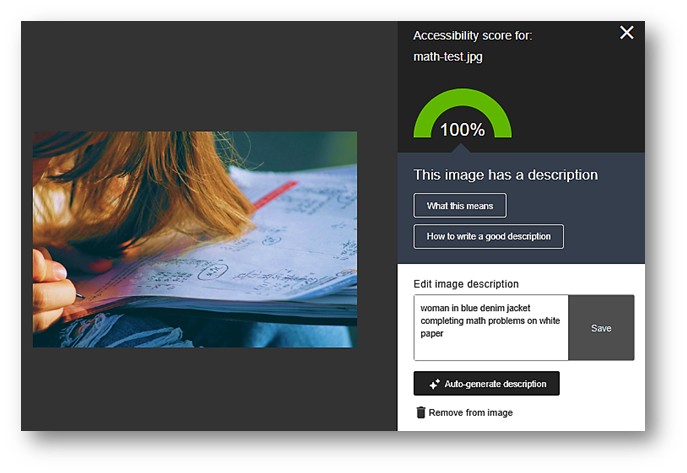
Instructors with less advanced alt text needs may find the Ally Alt Text Generator within Blackboard also provides high quality alt text for images within Blackboard pages. As with any AI-generated content, it is important to review and edit the alt text suggestions for accuracy and context.
Bonus Tip:
It’s a good idea to start a new chat with the assistant when you switch topics or courses to avoid having past responses influence the alt text provided for the next topic.
It’s also worth noting that AI Assistant has been trained on the details of current accessibility standards, so you can also ask for general tips for writing alt text.