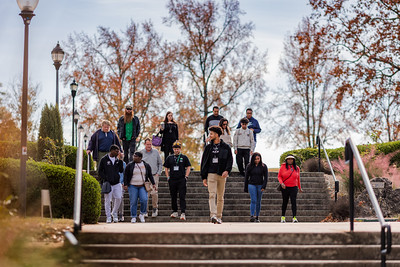
The image shows 12 USC Upstate students walking down outdoor stairs in campus.

What Students Want

At the start of each semester, CAIFS hosts a very short and optional Blackboard Ultra Quick Start course for incoming students. The goal of the course is to invite students to explore the LMS and try out the discussion board, assignment submission, and Yuja video quiz so they have some level of familiarity and comfort with the learning environment before classes begin. The discussion board prompts students to discuss how comfortable they are with digital tools and to share some goals for the semester ahead and how they plan to achieve them. Of the students who engage with the course, almost all of them say they feel pretty comfortable with different digital tools, they want to establish and maintain a 3.5 GPA or higher, and they hope to meet some friends. These qualities and experiences that they hope for all contribute to and support student well-being and belonging. So what can we do to help students expand their tech skills, get the most from their courses and major, and find some friends? 

Expanding 21st Century Tech Skills

Now that USC Upstate students have shared with us that they feel pretty comfortable with common tech tools, what can we do to increase their comfort with and use of 21st-century skills? One consideration is to embed technology use within authentic disciplinary tasks rather than treating technology as a standalone skill or course. We might ask students to use technology to analyze data, collaborate digitally, evaluate content and sources for accuracy, and communicate to different audiences across multiple platforms. Designing assignments that require students to select tools intentionally, document their decision-making, iterate based on peer and instructor feedback, and reflect on ethical considerations, like accessibility, data privacy, and AI use, can improve student motivation and engagement. It also invites students to build durable, transferable skills beyond specific tools or disciplines. If you’re interested in learning more about tech-integrated authentic assessment, explore Digital Authentic Assessments (DAA) in the article, Authentic Assessment in Higher Education: The Role of Digital Creative Technologies.   

Nurturing Academic Persistence and Career Readiness

Faculty can also play a role in supporting students as they reach their academic and career readiness goals. Instructional practices that support persistence, like transparent assignments, scaffolded skill development, timely and actionable feedback, and opportunities to revise, build students’ confidence and sense of belonging, especially in 100 and 200 level general education courses. At the same time, students are interested in their career prospects and rely on faculty to make disciplinary skills explicit, to provide access to simulations or applied projects, and to guide them through the practice of communication, collaboration, and problem-solving like a historian, nurse, educator, or other professional. Small shifts in how we describe our assignments can make a huge impact: by naming the transferable skills, inviting students to reflect on how course learning connects to several careers, and aligning assessments with career-focused expectations, we can guide students toward achieving their academic and career goals. To learn more about integrating career readiness into your courses, reach out to Lillian Reeves (reeveslg@uscupstate.edu) to learn about how to access ACUE’s Quick Study course on that topic.  

Finding Friends

While students have plenty of opportunities outside of class to meet people, they also spend a lot of time in class, which makes it the perfect place to meet a friend or two. Faculty can play a small, but powerful role in helping students meet their peers by designing classes that make connections feel natural. Small group work, low-stakes peer discussions in the early parts of the semester, and in-class collaborative projects with clearly defined roles can give students the repeated opportunities they need to get to know each other. When students have opportunities to speak and be listened to, community can emerge. To learn more about how to nurture the kinds of connections that lead to student success or to add some new strategies for building community to your practice, visit Elon’s Center for Engaged Learning and read the free copy of Peter Felten and Colleague’s book, Connections are everything: A college student’s guide to relationship-rich education. 

Students come to college often full of hope and nerves. In recognition of both, we can listen to their aspirations and create opportunities for them to achieve their goals and make lasting connections with peers, faculty, and staff. Evidence across institutional size, rank, and geographic location in the United States has shown that relationships enrich the college experience and strengthen students’ sense of belonging immeasurably. In this way, fostering connections becomes a powerful – if often overlooked – dimension of student success.  

Students walking around an imaginary college landscape with buildings, books, and larger-than-life computers.

AI Spark Tips: From Curiosity to Confidence: Improving Assignment Instructions with the OLC Course Review Assistant GPT

If you’re curious about ChatGPT.Edu but haven’t quite figured out how it fits into your teaching, you’re not alone. AI suggestions for course materials can fall flat when using a generic AI, but you may be surprised by what you find when you use a customized GPT designed by instructors for instructors.

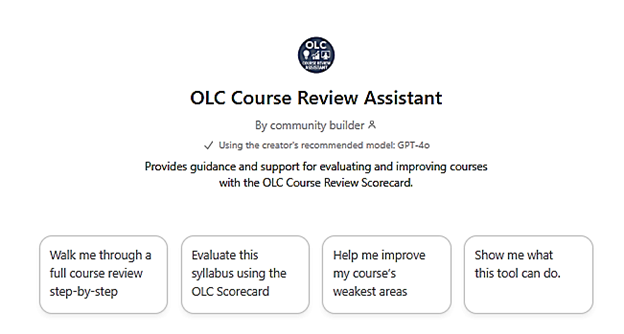
The Online Learning Consortium (OLC) Course Review Assistant GPT is a first-of-its-kind chatbot trained on education research in instructional design and online and hybrid learning and tuned to OLC’s evidence-based scorecards to improve course quality.

OLC Course Review Assistant. Provides guidance and support for evaluating and improving courses with the OLC Course Review Scorecard with four getting started action cards.

A Strong First Use Case: Refining What You Already Have

Instead of tackling a full course review, start with something familiar: assignment instructions.

Try using the OLC Course Review Assistant in ChatGPT.Edu to:

  • Clarify assignment instructions in student-friendly language
  • Ensure that assignments are designed to measure your course learning outcomes
  • Break down assignments into step-by-step checklists or guides
  • Create rubrics for grading assignments based on your instructions and outcomes

Example prompt:

“My course learning outcomes are [PASTE FROM SYLLABUS]. First evaluate how well my assessments align to the course learning objectives. Then, offer any suggestions for improving the assignment instructions below. Flag any areas in the instructions that might confuse students.” [Copy and Paste or Upload Your Current Assignment]

Review the suggestions for clarifying your instructions. If they help, keep them. If they don’t, you’ve learned something without risk.

Based on its training in instructional design, the OLC Course Review Assistant will ask you follow up questions that may give you new ideas for supporting your students’ learning with assignment examples, guides, rubrics, and other clarifying features.

Getting Started with the OLC Course Review Assistant GPT

USC Upstate is an OLC member. To get started claim your account by going to the OLC homepage, then click on “Create an Account.” Please use your institutional email address as your username as this will link you to our institutional membership.

Once your account is active, you may explore the OLC site, or go directly to the OLC Course Review GPT through your USC Upstate ChatGPT.Edu account. Go to ChatGPT (also available in the SpartanHub), then login by entering your USC Upstate email address in the email box to use single sign on.

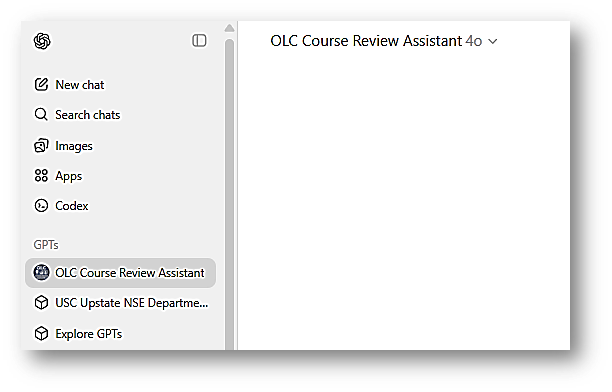
In the upper-left of your screen, you’ll see the OLC Course Review Assistant GPT button. Click it and begin interacting with the bot.

Screenshot of USC Upstate's ChatGPT Edu, with left menu options for New Chat, Search chats, Images, Apps, Codex, GPTS: OLC Course Review Assistant, USC Upstate NSE Department Alt Text Generator, and Explore GPTs

Final Thought

You don’t need to redesign your whole course to begin using AI thoughtfully to improve student learning outcomes. One low-stakes, repeatable use of a context-specific GPT can be enough to help you move from curiosity to confidence.

Students walking around an imaginary college landscape with buildings, books, and larger-than-life computers.

AI Spark Tips: When Students Ask at 2 a.m.

How Blackboard’s AVA Supports Learning Without Replacing You

We’ve all done it. We know the answer is in the user guide or instruction manual, but we don’t want to skim the whole document. Students feel the same way about the course syllabus. They know the answer is in the syllabus, but they don’t know where it is or what to look for.

Blackboard’s AI Virtual Assistant (AVA) is designed to provide just-in-time automated answers about your course and syllabus information, so you don’t have to. You write your syllabus and course instructions into your Blackboard course, and AVA looks up the answers to students’ logistical questions based on your materials.

What Is AVA?

Blackboard’s AVA is a built-in AI agent designed to work only within the closed system of your Blackboard course. It answers objective questions posed in natural language by referring students to specific content you have added to your course. It does not share the information outside your course to train AI models, and it does not search beyond your content to make up answers that sound right.

AVA acts like a self-writing FAQ that students can access anytime, any place.

How Do Students Use AVA?

If you opt to enable AVA in your course, students access AVA when they send you a message through Blackboard. After they click Send on a new message or Reply to an existing message thread, AVA introduces herself.

Screenshot: I am AVA, your Virtual Assistant. I'm searching the course for a response to your message. Any results I suggest are also seen by the instructor to verify their accuracy.

When students ask about due dates, course policies, assignment instructions, and other objective questions, AVA provides answers and direct links to the source of your course information. The complete record of this interaction is saved for your review within the Message thread in your Blackboard course.

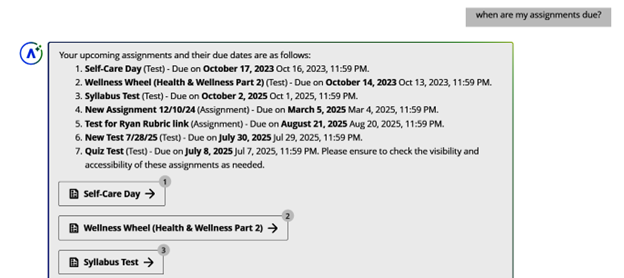
For example, a student could ask if any assignments are due tomorrow. Or they could ask for a list of assignment due dates. AVA searches your assignment due dates and compiles a list of course links.

Screenshot of AVA chat in Blackboard course. Student asks, "When are my assignments due?" AVA lists all upcoming due dates in order and provides assignment links in chronological order.

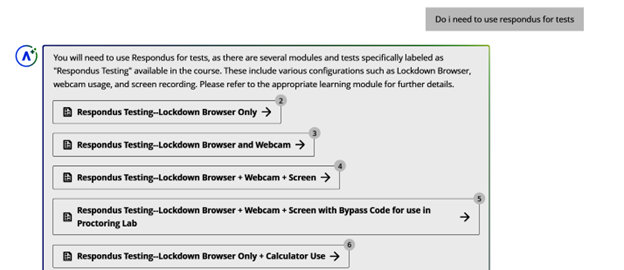
AVA will intuit some answers, but only if the link to course materials is very clear. For instance, I asked whether Respondus monitoring was required for tests, and AVA concluded it was based on the number of references to Respondus within the course.

screenshot of AVA chat. Student says, "Do I need to use Respondus for tests?" AVA answers that there are several modules and tests specifically labeled Respondus testing and provides links to those materials.

AVA did not, however, offer answers that were not directly available within the course materials provided by the instructor. My test course did not include a syllabus with a grading breakdown, so when I asked how much an assignment counted toward the Overall Grade, AVA directed me to wait for the instructor’s response.

Screenshot of AVA chat. Student: "how do I turn in my assignment?" AVA: "Currently, there is no direct information on how to turn in your video assignment. Please wait for your instructor's response for further guidance.

As you can see from the sample interactions, AVA is not “chatty” or personal. She does not make judgment calls nor offer a personality that may clash with your instructor presence in your course. She’s simply a clear, formal, automated messenger who directs students to the answers you have already posted in your course. Even at 2 a.m.

Getting Started with AVA in Your Course

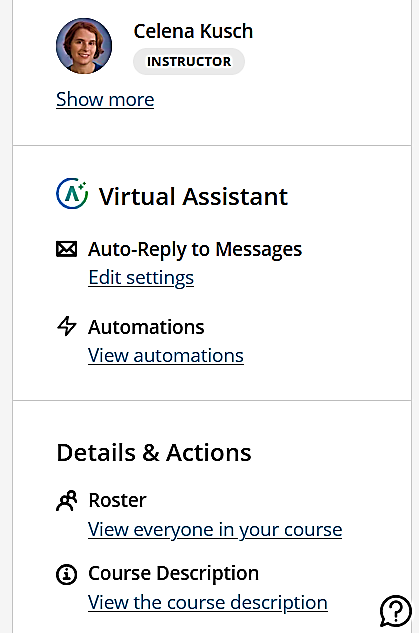
AVA is disabled in your class by default. Instructors have the option to enable AVA directly from the Details and Actions area of the Course Content page.

Under the Virtual Assistant heading on the main Course Content page, instructors may click “Edit Settings” to enable or disable AVA messaging.

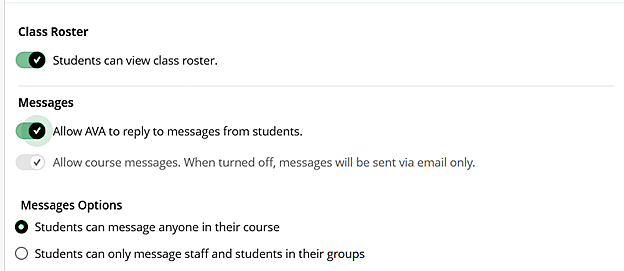
The Edit Settings button will take you to the Course Settings options, where you may toggle the switch labeled “Allow AVA to reply to messages from students.”

Instructors who wish to use AVA must opt in to using this feature in each course by editing those settings.

Screenshot of Blackboard Course Content page Details & Actions menu, including Virtual Assistant Auto-Reply to Messages with Edit Settings link.
Course Settings options showing Class Roster on, All AVA to reply to messages from students on, and Students can message anyone in their course on

Final Thoughts

AVA is a new student-facing AI feature in Blackboard. Its prompting is cautious and careful.

It effectively answers very straightforward questions about course logistics 24/7, and it provides a record of interactions for you to expand upon later.