
How Blackboard’s AVA Supports Learning Without Replacing You
We’ve all done it. We know the answer is in the user guide or instruction manual, but we don’t want to skim the whole document. Students feel the same way about the course syllabus. They know the answer is in the syllabus, but they don’t know where it is or what to look for.
Blackboard’s AI Virtual Assistant (AVA) is designed to provide just-in-time automated answers about your course and syllabus information, so you don’t have to. You write your syllabus and course instructions into your Blackboard course, and AVA looks up the answers to students’ logistical questions based on your materials.
What Is AVA?
Blackboard’s AVA is a built-in AI agent designed to work only within the closed system of your Blackboard course. It answers objective questions posed in natural language by referring students to specific content you have added to your course. It does not share the information outside your course to train AI models, and it does not search beyond your content to make up answers that sound right.
AVA acts like a self-writing FAQ that students can access anytime, any place.
How Do Students Use AVA?
If you opt to enable AVA in your course, students access AVA when they send you a message through Blackboard. After they click Send on a new message or Reply to an existing message thread, AVA introduces herself.

When students ask about due dates, course policies, assignment instructions, and other objective questions, AVA provides answers and direct links to the source of your course information. The complete record of this interaction is saved for your review within the Message thread in your Blackboard course.
For example, a student could ask if any assignments are due tomorrow. Or they could ask for a list of assignment due dates. AVA searches your assignment due dates and compiles a list of course links.
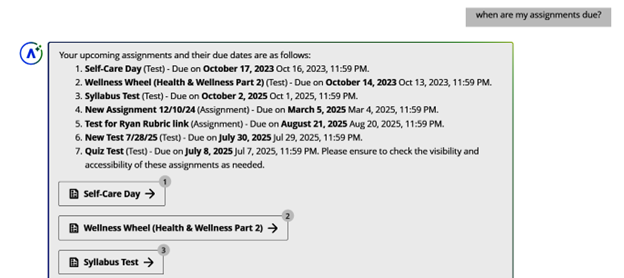
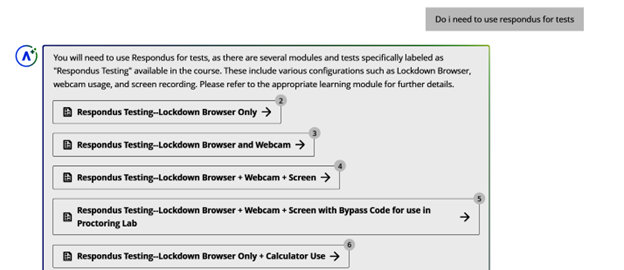
AVA will intuit some answers, but only if the link to course materials is very clear. For instance, I asked whether Respondus monitoring was required for tests, and AVA concluded it was based on the number of references to Respondus within the course.
AVA did not, however, offer answers that were not directly available within the course materials provided by the instructor. My test course did not include a syllabus with a grading breakdown, so when I asked how much an assignment counted toward the Overall Grade, AVA directed me to wait for the instructor’s response.

As you can see from the sample interactions, AVA is not “chatty” or personal. She does not make judgment calls nor offer a personality that may clash with your instructor presence in your course. She’s simply a clear, formal, automated messenger who directs students to the answers you have already posted in your course. Even at 2 a.m.
Getting Started with AVA in Your Course
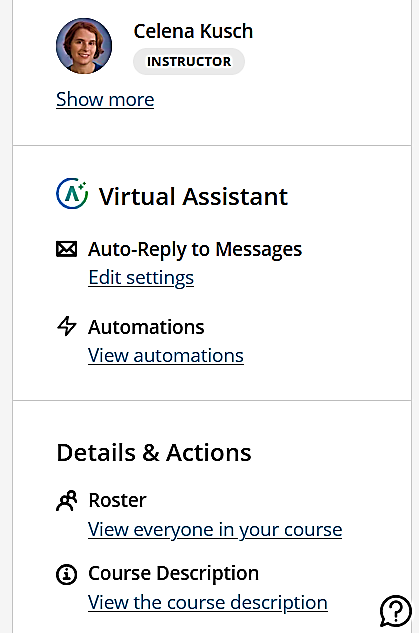
AVA is disabled in your class by default. Instructors have the option to enable AVA directly from the Details and Actions area of the Course Content page.
Under the Virtual Assistant heading on the main Course Content page, instructors may click “Edit Settings” to enable or disable AVA messaging.
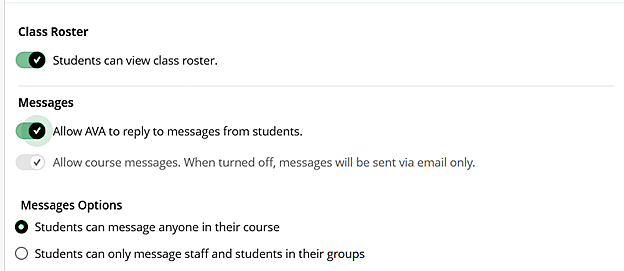
The Edit Settings button will take you to the Course Settings options, where you may toggle the switch labeled “Allow AVA to reply to messages from students.”
Instructors who wish to use AVA must opt in to using this feature in each course by editing those settings.
Final Thoughts
AVA is a new student-facing AI feature in Blackboard. Its prompting is cautious and careful.
It effectively answers very straightforward questions about course logistics 24/7, and it provides a record of interactions for you to expand upon later.