
When selecting materials for your courses, where you start can make all the difference. Beginning your search at the library not only saves time, but it also helps ensure students have current, accessible content to supplement your instruction.
Start with Library Links
Academic libraries are the best place to start looking for course readings. Librarians can help you identify high-quality, current articles, open-access resources, and other digital content available through institutional subscriptions and thoughtful curation. For this reason, faculty may consider using stable library links instead of using PDF files. Many publishers provide full-text or HTLM versions of articles that can be read online and are more accessible for screen readers and assistive technologies. HTML is built using semantic markup (e.g., specific tags for headings <h1> to <h6>, paragraphs <p>, and lists) that provides an organized and logical structure for screen readers to interpret and navigate content efficiently. When we scan articles and turn them into PDFs, they become images that can be tagged, but improper or missing tags often disrupt the reading order or make the content unreadable for assistive technology.
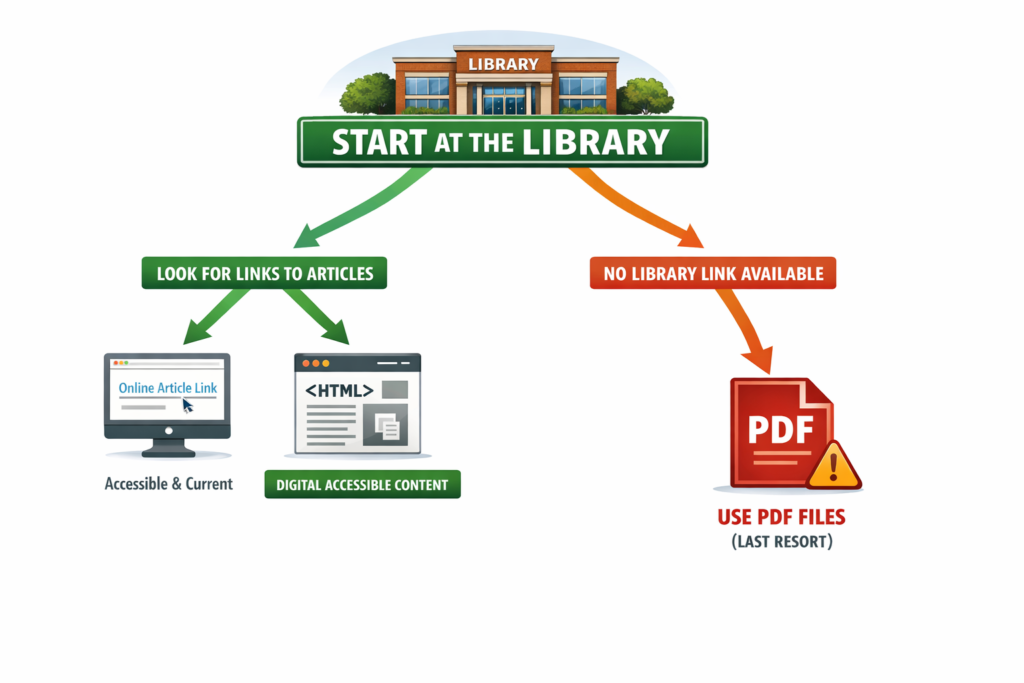
Image full description: The flowchart above begins with a green library icon and the message “Start Your Search at the Library,” then splitting into two paths. The preferred left path (green) guides users to “Find Article Links,” leading to accessible online content such as HTML articles and full-text links, highlighted as “Digital & Accessible.” The right path (red) appears only when no link is available and directs users to use PDF files as a last resort, emphasizing the need to edit them for accessibility.
Searchable
HTML articles are properly formatted and linked to the full text, allowing students to search within the text, adjust display settings, use assistive tools, and activate any plug-in preferences. HTLM formats will also update over time as academic publishers work to achieve compliance with WCAG as well.
Recently, I was reading an article in the EBSCO database, and I noticed the toolbar across the top right of the page. In the toolbar, there are a headphone icon and an accessibility icon at the far right. The headphones allow users to listen to the article.

Image full description: The image shows a horizontal toolbar with a series of icons arranged side by side against a light gray background. From left to right, the icons include a bookmark symbol, a quotation mark, a camera with a plus sign, a curved arrow pointing right, a download symbol, a printer, a globe, a list with two lines, a set of headphones, and a circular icon with a person surrounded by a blue ring indicating accessibility options.
Accessibility Icon
The accessibility icon, however, launches a form that allows users to request “content remediation.” According to the website, content remediation transforms content into more accessible formats, ensuring compliance with accessibility standards and compatibility with assistive technologies. Remediated content can be requested as a Word document or as HTLM and will be returned to the user in 3-5 days. I tried this out and was very glad to receive a more accessible version of the article a few days later.
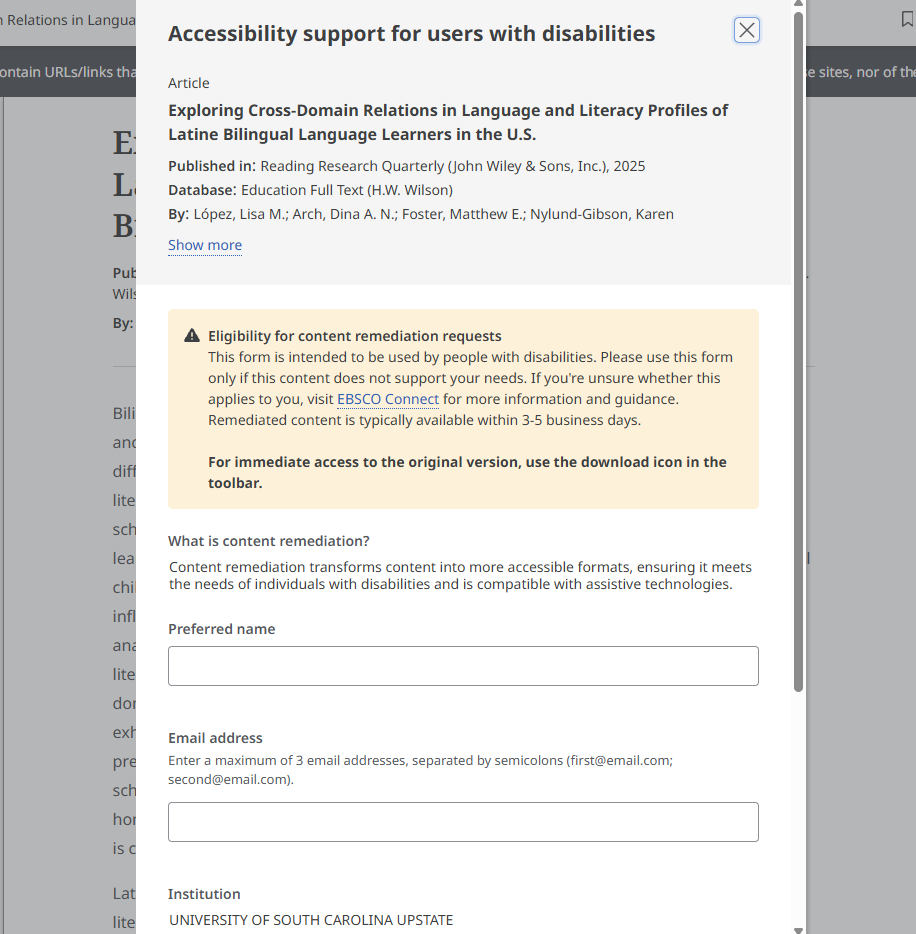
Image full description: The Ebsco pop-up window titled “Accessibility support for users with disabilities” appears over a text-heavy webpage. The pop-up references an article titled “Exploring Cross-Domain Relations in Language and Literacy Profiles of Latine Bilingual Language Learners in the U.S.” A section marked with a triangle icon containing an exclamation point explains eligibility and how to request accessible content formats.
Use PDFs Sparingly
If an article cannot be linked through the library, PDF files may be necessary, but they really should be the exception, not the rule. Scanned PDF files often require significant remediation, such as OCR and tagging, to meet accessibility standards. When PDFs must be used, plan for additional time to ensure they are accessible.
If the PDF has simple formatting, you may be able to use Blackboard’s built-in “convert a file” document feature, which converts the selected file into the Blackboard Ultra Document format. Supported file types include PDF, PowerPoint (ppt, pptx, pps), and Word (doc, docx, odt). Be sure to review the converted content for accuracy.
Scanning book chapters and sharing them as PDF files is ideally a thing of the past and may violate copyright laws. If there are text materials you can’t find anything comparable to, work with the library to request access to ebooks or other resources. Visit the USC Upstate Copyright LibGuide to learn more about copyright and fair use in higher education.
Support
CAIFS also has several accessibility trainings coming up with Celena and Jennifer on Word documents and Adobe PDFs. The Word document presentation covers Word as well as Powerpoint, email, and video captioning. To sign up for those trainings, please review the Accessibility Matters Form and choose any this spring that work with your schedule.
You can also log into Blackboard and visit the CAIFS professional development course and explore the guidance on Word and Adobe if none of the training times work for you. Additionally, if you’d like assistance from the CAIFS accessibility team, please complete our Accessibility Assistance Form and we’ll reach out and set something up.
A Small Shift with a Big Impact
By starting at the library, prioritizing links, and choosing accessible digital formats, faculty can create courses that are easier to navigate, more inclusive, and more sustainable. And when PDFs are truly needed, support is available through CAIFS as you develop your accessibility skills and make your online and face to face course material more inviting and welcoming for all learners.