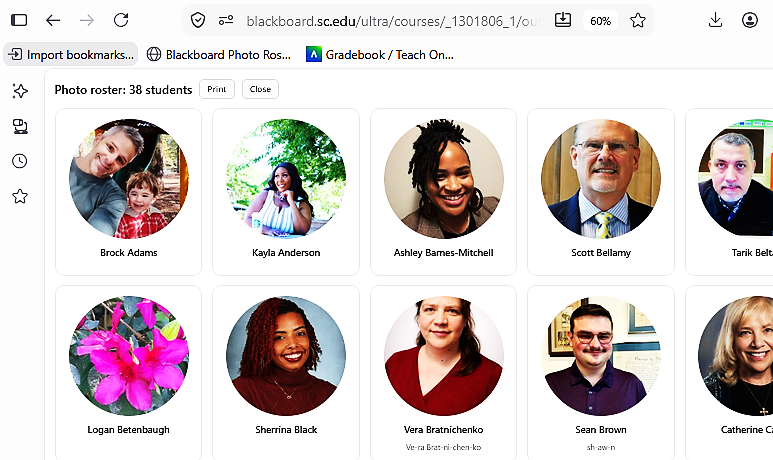
This bookmarklet creates a temporary large-photo roster from a Blackboard Ultra roster page. It does not modify Blackboard data; refreshing the page restores the normal view. You may also print a copy of your photo roster to help with attendance or learning student names
How to Use the Blackboard Photo Roster Bookmarklet
Drag this button to your bookmarks bar:
Install
- Show your browser’s bookmarks bar if it is hidden.
- Drag the Blackboard Photo Roster button above onto the bookmarks bar. If you use a keyboard or screen reader, right-click the link to the Blackboard Photo Roster button, choose Copy Link Address, then create a new bookmark in the way best suited to your browser and paste the copied javascript: URL into the bookmark’s address field.
Use
- Go to a Blackboard Ultra course.
- Open your Blackboard Ultra course roster.
- Make sure the roster has loaded. Scroll through it first to ensure that all students have loaded.
- Click Blackboard Photo Roster on your bookmarks bar.
- Click Close in the photo roster to return to Blackboard, or refresh the page.
Note: Instructors are omitted from the student photo roster.