As you’re basking in the summer sun or working on your summer teaching or research, make time to update your CV and accompanying materials. The CV is often a summary or a snapshot of all your academic achievements and in the life of a faculty member, a lot can change in a year. If you’re in the first part of your career, your CV might focus on your doctoral research, any publications or submitted scholarly work, courses you taught as a TA or adjunct before joining the faculty, conferences you’ve attended, and service you’ve completed.
Continue reading “Summer CV Refresh”
Blackboard Ultra Courses Increase Student Activity and Student Engagement at USC Upstate
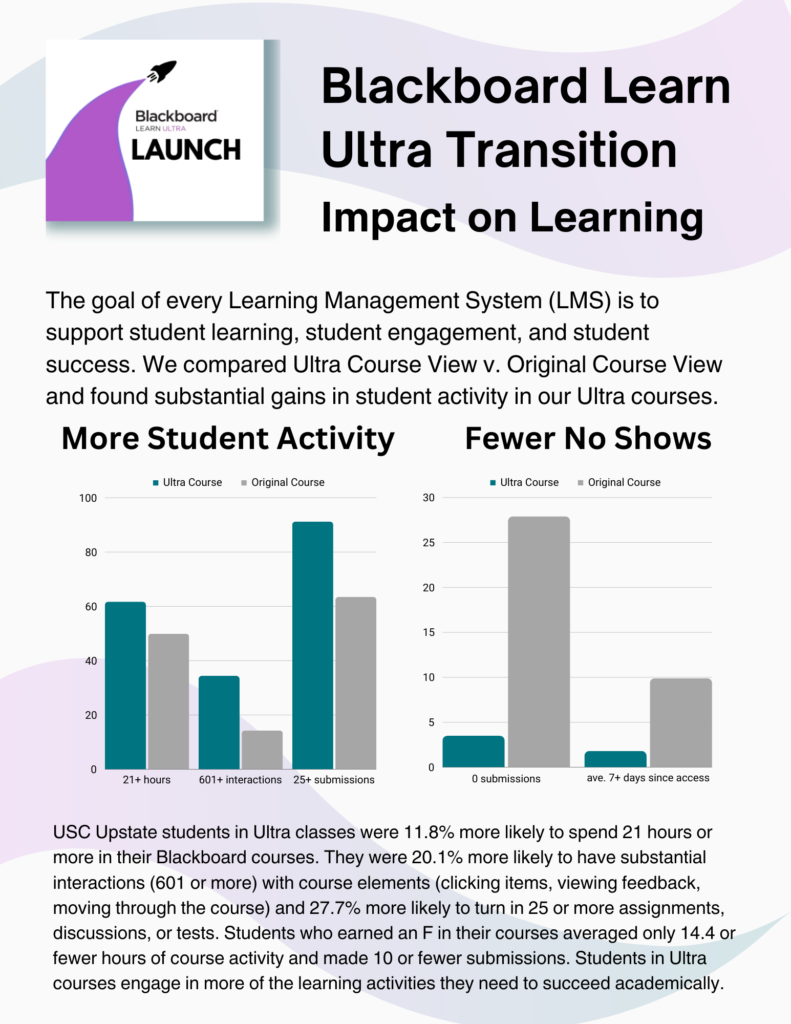
Beginning with Fall 2024, new courses in the University of South Carolina Learning Management System (LMS) will be created in Blackboard Learn Ultra Course View. Based on a comparison of student activity in Ultra v. Original courses, this change has the potential to improve student engagement, increase student activity, and lead to greater student success.
The infographic below shows differences between student activity in Ultra and Original courses in Fall 2023. Significantly more students in Ultra courses spend more active hours (21 or more) in courses, turn in more course submissions, and interact with course materials than their peers in Original courses.
When it comes to students who never submit any work (tests, assignments, quizzes, or discussion posts), only 2.3% of students in Ultra courses had never submitted any work to the course, while 27.9% of students in Original courses had never submitted any work in the course. It is important to note that some face-to-face classes may not require students to turn in work through the LMS, but this alone would not account for an order of magnitude difference in student submission rates.
Already, 27.5% of all Spring 2024 online and hybrid Blackboard courses at 20% of all USC Upstate courses overall are being delivered in Blackboard Learn Ultra. The evidence from student activity and performance data suggests that faculty efforts to make this transition are likely to have a positive impact on student learning outcomes in the future.
USC Upstate Blackboard Day 2024: Preparing for Transition to Blackboard Learn Ultra Courses

Join us for our 5th Annual Blackboard Day in the CLC Ballroom, by accessing Collaborate in the CAIFS PD Course, or by using the links below!
9 am to 9:30 am
Welcome and Blackboard Learn Ultra Transition Updates
Join Celena Kusch to hear about the latest updates in the Blackboard Learn Ultra Transition and new developments coming in Summer/Fall 2024. Discuss how changes to Anthology, Collaborate, and soon Zoom may make it easier for you to access the tools you need.
Join virtually via the CAIFS PD Course or the Morning Session Guest Link.
9:45 am to 10:30 am
Blackboard Learn Ultra Navigation Basics
 Let’s dive into Ultra and learn our way around the updated course view. Discover where to find key features and settings so you can start to feel comfortable in a new course format. We will also discuss how to create different types of assignments. Facilitator: Jennifer Bland, Learning Experience Designer.
Join via the CAIFS PD Course or the Morning Session Guest Link.
10:45 am to 11:25 pm
Transitioning Your Course from Original to Ultra: Steps for an Easy Course Conversion
 What happens after you click Ultra Course View Preview? Take a step-by-step tour of converting your original course into an Ultra student experience. We’ll discuss strategies for achieving a consistent, sequential, logical, and accessible course structure as you go. Facilitator: Celena Kusch, Executive Director, Academic Innovation & Faculty Support.
Join via the CAIFS PD Course or the Morning Session Guest Link.
11:35 am to 12:20 pm
Inclusive and Welcoming Blackboard Courses for All Students
 In this session, we’ll think together about creating inclusive and welcoming Blackboard courses by exploring strategies that foster a sense of belonging for students, implementing accessible content, and using communications tools embedded in Blackboard. The goal is to ensure that all students feel supported and guided through their learning journey with Blackboard.
Facilitator: Lillian Reeves, Director of Transformative and Inclusive Pedagogy.
Join via the CAIFS PD Course or the Morning Session Guest Link.
12:30 pm to 1 pm
Lunch
 Take a break, and drop by the CLC Ballroom with your laptop for brainstorming and troubleshooting within your course.
Do you need a sandbox course for playing around in Blackboard Learn Ultra Course View? Email academicinnovation@uscupstate.edu.
1 pm to 2 pm
Concurrent Sessions

AI-Enhanced Courses with Blackboard Learn Ultra AI Design Assist
Anthology, Blackboard’s parent company, has partnered with Microsoft Artificial Intelligence (AI) to develop easy-to-use tools enhanced by generative artificial intelligence and large language models. In this session, we will go over several key AI Design Assist tools embedded in every Blackboard Ultra course to support you in creating assessments, rubrics and even discussion boards tied to different levels of Bloom’s Taxonomy. Facilitator: Yamil Ernesto Ruiz, Director of Online Learning and Program Support

Using the Gradebook in Blackboard Learn Ultra (CLC 309)
Looking for your Needs Grading list or how to drop the lowest quiz grade? In this session, we’ll get to know the Ultra Gradebook and where to find all the features you need. We’ll also explore a range of student activity and student support features for accommodations, extensions, and exemptions in the Ultra Gradebook. Facilitator: Celena Kusch, Executive Director, Center for Academic Innovation & Faculty Support
2:15 pm to 3:15 pm
Concurrent Sessions

Embedded Tools in Blackboard Ultra
In this session, we will discuss the tools within Blackboard that you and your students can access for free. We will show how to embed YouTube videos, Padlets, Microsoft Forms, and Sway presentations, and how to use Perusall and VoiceThread activities for social learning and student-student interaction. Facilitator: Jennifer Bland, Learning Experience Designer
Join via the CAIFS PD Course or the Guest Link.

Preparing for Quality Matters Certification in your Online Course Design
Quality Matters (QM) is Upstate’s quality assurance process for ensuring that online courses are built with accessibility and our learners in mind. In this session, we will discuss concepts such as alignment, learning objectives, accessibility and more! Facilitator: Yamil Ernesto Ruiz, Director of Online Learning and Program Support
Join via the CAIFS PD Course or the Guest Link.
3:15 pm – 3:30 pm
Conclusion
Making the Case for Modules
Are we ready for modules?
Yes! And there is no better time to switch to modules from nested folders. In Blackboard Original, faculty were able to use the folder system just like the content containers on our computers. A file for P and T: files for service, teaching, scholarship; and within scholarship an articles folder; and in that folder works published for 2021, 2022, 2023; articles in the works that didn’t get published yet; and within that folder, proposals for any number of my million dollar ideas… anyone else have one of those? By the time we’ve gotten to the million dollar idea folder, we are eight folders deep in clicking and scanning.
Continue reading “Making the Case for Modules”
Are You Ready for Blackboard Learn Ultra?
Blackboard Learn Ultra represents the final phase of our four-year upgrade of our Learning Management System (LMS) at USC Upstate and the entire University of South Carolina System. With the launch of Blackboard Learn Ultra as the default course format across the University of South Carolina System in Fall 2024, we will be adopting the most up-to-date LMS experience within all our courses and giving our students a unified, consistent experience that has been shown to improve student success.
Blackboard Learn Ultra Upgrades 2019-2024
- December 2019: Blackboard Ultra Base Navigation introduced us to a Blackboard home page and institutional page that worked on any device and integrated image- and icon-based ways to navigate to courses and organizations.
- Spring 2020: Blackboard Collaborate Ultra became home base for our virtual class meetings during the COVID-19 pandemic.
- Fall 2020: Our first faculty cohort piloted the Blackboard Learn Ultra Course View, creating courses that adapt to any of the devices our students use.
- 2021: The Master’s of Nursing program switches to Blackboard Learn Ultra Course View.
- 2022: Our facilitator-led online teaching certification course moves to Blackboard Learn Ultra.
- Fall 2023: 17.6% of all USC Upstate courses are delivered in the Blackboard Learn Ultra Course View.
- Winter 2024: University of South Carolina System Learning Management System (LMS) Review Committee begins assessment of learning management systems to determine the best LMS option to adopt at the end of our Blackboard contract.
- Spring 2024: The Master’s of Education in Applied Learning and Instruction switches to Blackboard Learn Ultra Course View.
- Spring 2024: All new USC Upstate students are enrolled in the Blackboard Ultra for Students Quick Start course, and students complete their placement tests in Ultra Course View.
- Summer 2024: End of USC System contract with Collaborate. Zoom becomes the USC System virtual meeting platform within Blackboard courses, with meeting recordings being saved in the Panopto Video platform. The Student Attendance Quiz becomes part of all new Blackboard courses.
- Fall 2024: Blackboard Learn Ultra becomes the default course format for all new courses.
About Blackboard Learn Ultra
Blackboard Learn Ultra courses are lighter, more accessible, more flexible on various devices and filled with more white space than courses in the Blackboard Original Course View. They provide students with ways to track their course progress and instructors with ways to view student activity in the course–right from the course item or gradebook. Ultra courses can work less like a file/folder structure in a computer and more like a guided learning experience. In sum, they are worth taking the time to convert.
The vast majority of current courses make use of just a few course design features: files, video links, folders, discussions, assignments, and tests. Converting content for courses like these will typically involve checking the gradebook settings, recalculating the overall grade, and clicking a button to add the discussions to the content page for ease of access.
Frequently Asked Questions
How do I navigate in Blackboard Learn Ultra?
The analogy I like to give is like rotating the x- and y-axes of your course. The content headings you may have customized on the left in Original Course View will now appear in the main content area on the right in Blackboard Learn Ultra. The tools you found in the lower left control panel in Original appear across the top in Blackboard Learn Ultra. The content options you find along the top of the page in Original unfold in menus on the right-hand side in Ultra. When I first converted, I found myself tilting my head a lot to try to get used to the new orientation.
One great Easter egg in course navigation is the Blackboard Learn Ultra Roster in the left-hand menu. Here, you can see photos, pronunciations, and preferred name for students who have used those settings. In addition, you can set accommodations for students who receive time and a half or double time on tests and other timed work. One click inside the roster ensures that students receive their accommodations on every timed assignment throughout the course.
How do I add content in Blackboard Learn Ultra?
It all starts with a + (plus sign). In Blackboard Learn Ultra, you move your cursor where you want to place content, hover between existing items, then click the + (plus sign) that appears. You’ll Create Documents to add your own text, images, videos, embed codes from websites, or combinations of materials; Upload to add files; Create Discussions, Tests, Assignments, or Journals for graded work; or click Content Market to add embedded tools like Perusall, VoiceThread, YuJa, VitalSource, My Course Evaluations, or related features. You can Copy any item from the same course or any other Blackboard course directly from the plus sign on the Content page. The USC Upstate Blackboard Guide offers tips for using these features of Blackboard Learn Ultra in your courses.
Don’t like where something is? Just drag and drop it where you want it to go.
How do I grade in Blackboard Learn Ultra?
Instructors can access several Original Course View Control Panel features all from within the Gradebook. The Gradeable Items view works like “Needs Grading.” Grid View functions like the Full Grade Center. Student view gives you the equivalent of the Student Grade Report, provides the analytics of a User Activity Report, and lets you make exceptions to due dates right from inside the Gradebook. Clicking the settings gear icon brings you to grading schema, grading categories, rubrics, and retention notifications all on a single page.
Quick Tip: Disable automatic zeros in the Gradebook settings until you need to calculate midterm or final grades to avoid student panic early in the term. You can toggle automatic zeros on and off to control when and how often in the term students are assigned a zero for all missing work.
Where can I learn more about the systemwide transition to Blackboard Learn Ultra?
The University of South Carolina System’s go.sc.edu/Ultra page provides updated information about the systemwide transition process, including systemwide workshops and drop-ins. At USC Upstate, our calendar features Let’s Talk Teaching drop-in hours the first Friday of every month as well as Blackboard Day on January 5–all focused on preparing for the Blackboard Learn Ultra Launch in Fall 2024. We will be launching a new self-guided course geared toward teaching in Blackboard Learn Ultra in spring 2024.
You can also book an appointment with a member of CAIFS to talk about the Ultra conversion.

Please Read It to Me: Read Aloud Options for Course Materials

There is a kind of warmth that comes from being read to–a sense that the reader is making a gesture of care. Perhaps this is the attraction of listening to audiobooks on our morning commute or asking Siri or Alexa to read us the news while we make dinner, walk the dog, or complete chores.
Our courses, too, can extend that gesture of care just by letting students know about free accessibility tools that can make nearly all your course materials available in audio formats.
Why Audio-based Materials Matter
Audiobooks are seen as a widespread convenience for letting us read when our eyes must be otherwise engaged, but they can do so much more. Making audio materials available in your courses can be an important step toward universal design for learning. Audio formats of readings are essential for learners who rely on screenreaders, but they are also great for learners with ADHD, multiple language learners, learners with dyslexia or other visual processing issues, or anyone who finds that particular course materials push them to the high end of their reading comprehension range.
Providing learners with the opportunity to listen to materials as they read can help reinforce the materials in working memory and increase the likelihood that course content will make it into long-term memory storage.
How Do We Access Audio Formats of Typical Course Materials?
Ebooks and Articles
If you are using Inclusive Access materials through the bookstore, VitalSource offers a Read Aloud feature on all its ebooks. Likewise, many articles available through the library databases offer a Text-to-Speech option within the database, and any article or ebook chapter or section that you download as a PDF can be read aloud through Adobe Acrobat Reader or Acrobat Pro. The Internet Archive of public domain texts offers a Read Aloud option, just by clicking the headphones icon in the navigation menu (next to zoom in and zoom out) for any text.

Blackboard LMS Pages and Documents
Any page or document that is loaded into a Blackboard course can be read aloud by clicking the Ally icon (an A with an arrow) in the upper right corner of the screen or on the right side of a document. Hovering over the Ally icon will display the text, “Download Alternative Formats.”


After clicking on the A with an arrow, you will see several options for alternative formats. Select Audio to have Ally download an audio version of the reading, then click on the downloaded file to play it on your computer or phone. Other formats include electronic braille, immersive reader, the color gradient text within Beeline Reader, and ePub for use on iPads, Nook, and other eReaders.

If you haven’t tried out all the features of Immersive Reader, you can go far beyond text-to-speech. Readers can customize backgrounds, fonts, spacing, “reading rulers” or line focus, and even show parts of speech and syllables.
Materials on Any Webpage
Many of our course materials are open educational materials that are available on public websites. In this case, you can have your web browser read to you. Google Chrome offers a “read aloud” extension that you can download for free in the Google Store. You can follow the instructions for using it on that page.
In Safari, this feature is already built-in, but it can be a little hard to find.
- Go to your webpage in Safari.
- Tap the Reader View icon in the browser bar. (This looks like a little paragraph next to the address of your website)

- In the menu at the top of your Safari browser, go to Edit > Speech > Start Speaking.
- Safari will immediately start reading the content on the webpage.
- To stop the reading in Safari, go to Edit > Speech > Stop Speaking.
On an iphone, you can do the same thing, just click the AA (little A and big A) icon and pick “Listen to Page.” Your phone will start reading to you. Please feel free to Google for how-to videos to look up other combinations of devices and browsers you may be using. You can be sure that there’s a way for your computer to read anything to you.