Students walking around an imaginary college landscape with buildings, books, and larger-than-life computers.

AI Spark Tips: Welcome to ChatGPT.Edu

Beginning in Fall 2025, USC Upstate is making available ChatGPT.Edu accounts for faculty, staff, and students. Along with Microsoft Copilot, ChatGPT.Edu is the University-provided Generative AI (GenAI) tool.

Getting Started with ChatGPT.Edu

Your ChatGPT.Edu account enables you to use single-sign-on with your USC Upstate email account and enjoy GenAI with a high level of privacy and security. While you should never share FERPA-protected, HIPAA-protected, or Personally Identifiable Information with a GenAI tool, you may share less sensitive information without the risk of that information being released publicly or being used to train future GenAI models.

Ready to start using ChatGPT.Edu?

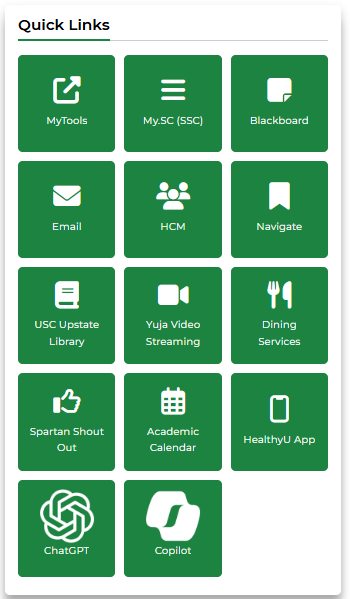
USC Upstate faculty, staff, and students may access ChatGPT.Edu through the Spartan Hub intranet link (login with USC Upstate email username and password). Look for the ChatGPT logo in the lower left in the Quick Links on your Spartan Hub Employee or Student home page. For questions about accessing your account, please call the Help Desk at 864-503-5257.

Screenshot of SpartanHub Employee Quick Links, featuring the ChatGPT icon in the lower left

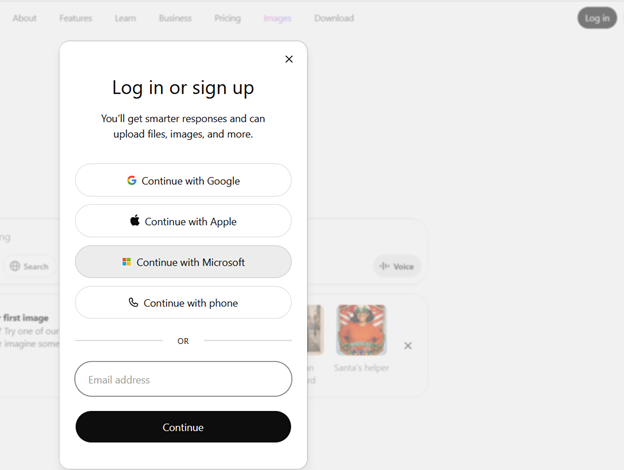
You may also login by going directly to ChatGPT.com. Click Log in, then select Continue with Microsoft. Use your USC Upstate email username and password to access your free ChatGPT.Edu account.

Screenshot of ChatGPT login options, with Continue with Microsoft highlighted

Interacting with Chat

As a type of GenAI, ChatGPT.Edu generates text, code, images, and even video based on the most probable information of that type it finds in similar contexts. The fastest way to get to know ChatGPT.Edu is to tell it details about your context and ask it to suggest a way to achieve something you need.

For example, say you are working with several student advisees or mentees, and you’d like to use GenAI to streamline your email communications throughout the semester. You may tell ChatGPT.Edu that you are an advisor at an institution of higher education, and you are looking for strategies to streamline your email communications with your student advisees by using email templates and scheduled messages within Microsoft Outlook.

Ask ChatGPT.Edu to suggest strategies for using automated email templates to offer supportive and timely notifications to your student advisees. Then, follow its lead!

ChatGPT.Edu may recommend different automation techniques you may wish to try with Microsoft Outlook. It may offer to write sample email templates for you. Or it may suggest ways for you to integrate Mail Merges or other strategies to streamline your communication process. Use the chat to follow up on those suggestions that seem best for you.

In general, a great way to start is to ask ChatGPT.Edu to suggest a detailed prompt for accomplishing the goal you are trying to achieve. Then, use its recommended prompt to ask it for your desired outcome.

Bonus Tip: The ChatGPT.Edu initiative began as a partnership between OpenAI and leading research universities. Find out more about how higher education institutions are using ChatGPT.Edu to bring AI to their campuses responsibly.

Students walking around an imaginary college landscape with buildings, books, and larger-than-life computers.

AI Spark Tips: Engaging Students’ Creativity with GenAI

Carol Denning-Broadus, Associate Instructor, has always used creative projects to engage her students with complex scientific concepts. In the past, her Introduction to Anthropology courses (ANTH U102) asked students to create analog board games to convey information about rites of passage in different cultures. Today, she uses Generative Artificial Intelligence (GenAI) tools to enable students to envision new worlds.

In Environmental Science (BIOL U270), Broadus invites students to view Avatar: The Way of the Water through a scientific lens. Students analyze the fictional ecosystems in class, then they use Microsoft CoPilot, ChatGPT, or other GenAI image generators to create new creatures that could be at home in the environment of the planet Pandora. The students’ creations often look like they could step right out of a video game.

Fantastic scene of a tidal pool full of bioluminescent plants and creatures on a fictional planet

Students work with GenAI to describe the features that will make their creatures into apex predators, prey species, or vegetation within the Pandoran oceans or landscapes. Students then write a report describing their creature’s environmental adaptations, food sources, and other features that make their creations a productive part of the ecosystems on the world of Pandora.

Bonus Tip: If you regularly use ChatGPT to make images, your images are saved in one place, in your ChatGPT Image Library.

Thank you to professor Broadus, former Bill Drake Outstanding Adjunct Faculty Member of the Year, for sharing her inspiring assignment ideas!

Students walking around an imaginary college landscape with buildings, books, and larger-than-life computers.

AI Spark Tips: How AI Ready Are You?

New AI tools emerge every day. A recent Y Combinator podcast claims that 5 new Agentic AI companies will arise for every cloud-based application we use today. No conventional human could ever keep up.

Today’s tool encourages us to take a pause and reflect on how ready we are for the onslaught of opportunities we find in Generative AI and related apps. The approximately 20-minute AI Knowledge Check created by the University of Saskatchewan provides a guided tune-up of AI literacy skills. This Knowledge Check can serve as a launching point to open a class unit about AI ethics or a research-based project where you may or may not encourage students to use AI.

Bonus Tip: Throughout the AI Knowledge Check tool, users are introduced to tips and resources about “Being AI Literate.” These resources include the ROBOT Checklist for responsible AI, the UNESCO AI Competency Framework for Students, tips for evaluating GenAI Outputs, and an overview of Human-Centered AI.

Screenshot of the AI Knowledge Check site at the University of Saskatchewan Library
Students walking around an imaginary college landscape with buildings, books, and larger-than-life computers.

AI Spark Tips: Generating Grading Rubrics with AI

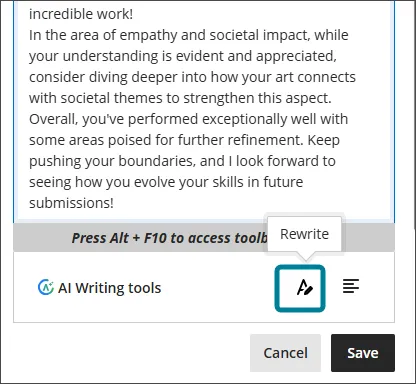
Within your Blackboard learning management system (LMS) platform, you can use AI to generate rubrics specifically matched to your assignment instructions and the learning outcomes of your course. As you create an assignment, just click Add Rubric, then generate Rubric to reach the AI rubric interface.

Cut and paste assignment instructions, course outcomes, and even a Word document table of an existing rubric, then set the parameters for the ways you wish to assess your students’ work, such as points v. percentage, performance categories, number of evaluation criteria. Finally, edit the performance descriptions to make the rubric work well for both you and your students.

Bonus Tip: Grading assignments using a rubric can streamline your grading workflow and decrease the amount of time spent on grading. Use rubric performance descriptions to explain the typical issues seen at that level of performance to avoid repeating the same kinds of comments in your personalized feedback to each student.

Learn more about Blackboard’s Rubric Generation with AI Design Assistant.

Screenshot of AI Design Assistant for Rubrics in Blackboard.
Students walking around an imaginary college landscape with buildings, books, and larger-than-life computers.

AI Spark Tips: NotebookLM for Multimedia Research

Google’s NotebookLM can be an innovative partner as you design instructional materials. Upload up to 20 sources–including YouTube videos and audio files–then ask NotebookLM to create summaries, notes, assessment questions, and even an AI-generated podcast conversation based on the sources you select.

It is important to be attentive to FERPA, data privacy, copyright and intellectual property laws and policies as you select sources to load into NotebookLM. Open Educational Resources, publicly-available and public domain sources, and materials you design are all great options for sources to include.

Bonus Tip: Share your notebooks with colleagues and collaborators who can edit materials in a shared project, or share view and interaction access with students to create an interactive learning experience covering multiple course sources in different formats.

Learn more at NotebookLM.

Screenshot of central panel of Google's NotebookLM sample notebook, including an overview and chat interface.

For more information about Ethical Use of Artificial Intelligence, please check out the Instructor’s Guide to Generative Artificial Intelligence in the Classroom (login to Spartan Hub with your USC Upstate email username and password) and our university policies on Responsible Use of Data, Technology, and User Credentials.

Students walking around an imaginary college landscape with buildings, books, and larger-than-life computers.

AI Spark Tips: Personalize Student Coaching with AI

ContactNord’s AI Tutor Pro offers students opportunities to chat with AI to either check their knowledge and skills or deepen their knowledge on a topic. Students select their learning level (e.g., undergraduate or graduate), level of difficulty (introductory through advanced), their preferred language, and the topic or content they wish to explore.

AI Tutor Pro follows guidelines for coaching learners, not providing them answers, so instructors can trust that this interface will not write a paper for a student.

Bonus: At the end of their AI tutoring session, students can download their chat transcript and turn it in as an assignment in your course. Ask learners to add a reflection about the AI’s accuracy and/or bias to prompt students to think critically about the strengths and limitations of AI.

Learn More at AI Tutor Pro.

Screenshot of AI Tutor Pro by Contact Nord. Chat asks learners to "Help me learn more about...."