Blackboard Learn Ultra Launch with rocket heading upward

Are You Ready for Blackboard Learn Ultra?

Blackboard Learn Ultra represents the final phase of our four-year upgrade of our Learning Management System (LMS) at USC Upstate and the entire University of South Carolina System. With the launch of Blackboard Learn Ultra as the default course format across the University of South Carolina System in Fall 2024, we will be adopting the most up-to-date LMS experience within all our courses and giving our students a unified, consistent experience that has been shown to improve student success.

Blackboard Learn Ultra Launch with rocket heading upward

Blackboard Learn Ultra Upgrades 2019-2024

  • December 2019: Blackboard Ultra Base Navigation introduced us to a Blackboard home page and institutional page that worked on any device and integrated image- and icon-based ways to navigate to courses and organizations.
  • Spring 2020: Blackboard Collaborate Ultra became home base for our virtual class meetings during the COVID-19 pandemic.
  • Fall 2020: Our first faculty cohort piloted the Blackboard Learn Ultra Course View, creating courses that adapt to any of the devices our students use.
  • 2021: The Master’s of Nursing program switches to Blackboard Learn Ultra Course View.
  • 2022: Our facilitator-led online teaching certification course moves to Blackboard Learn Ultra.
  • Fall 2023: 17.6% of all USC Upstate courses are delivered in the Blackboard Learn Ultra Course View.
  • Winter 2024: University of South Carolina System Learning Management System (LMS) Review Committee begins assessment of learning management systems to determine the best LMS option to adopt at the end of our Blackboard contract.
  • Spring 2024: The Master’s of Education in Applied Learning and Instruction switches to Blackboard Learn Ultra Course View.
  • Spring 2024: All new USC Upstate students are enrolled in the Blackboard Ultra for Students Quick Start course, and students complete their placement tests in Ultra Course View.
  • Summer 2024: End of USC System contract with Collaborate. Zoom becomes the USC System virtual meeting platform within Blackboard courses, with meeting recordings being saved in the Panopto Video platform. The Student Attendance Quiz becomes part of all new Blackboard courses.
  • Fall 2024: Blackboard Learn Ultra becomes the default course format for all new courses.

About Blackboard Learn Ultra

Blackboard Learn Ultra courses are lighter, more accessible, more flexible on various devices and filled with more white space than courses in the Blackboard Original Course View. They provide students with ways to track their course progress and instructors with ways to view student activity in the course–right from the course item or gradebook. Ultra courses can work less like a file/folder structure in a computer and more like a guided learning experience. In sum, they are worth taking the time to convert.

The vast majority of current courses make use of just a few course design features: files, video links, folders, discussions, assignments, and tests. Converting content for courses like these will typically involve checking the gradebook settings, recalculating the overall grade, and clicking a button to add the discussions to the content page for ease of access.

Frequently Asked Questions

How do I navigate in Blackboard Learn Ultra?

The analogy I like to give is like rotating the x- and y-axes of your course. The content headings you may have customized on the left in Original Course View will now appear in the main content area on the right in Blackboard Learn Ultra. The tools you found in the lower left control panel in Original appear across the top in Blackboard Learn Ultra. The content options you find along the top of the page in Original unfold in menus on the right-hand side in Ultra. When I first converted, I found myself tilting my head a lot to try to get used to the new orientation.

One great Easter egg in course navigation is the Blackboard Learn Ultra Roster in the left-hand menu. Here, you can see photos, pronunciations, and preferred name for students who have used those settings. In addition, you can set accommodations for students who receive time and a half or double time on tests and other timed work. One click inside the roster ensures that students receive their accommodations on every timed assignment throughout the course.

How do I add content in Blackboard Learn Ultra?

It all starts with a + (plus sign). In Blackboard Learn Ultra, you move your cursor where you want to place content, hover between existing items, then click the + (plus sign) that appears. You’ll Create Documents to add your own text, images, videos, embed codes from websites, or combinations of materials; Upload to add files; Create Discussions, Tests, Assignments, or Journals for graded work; or click Content Market to add embedded tools like Perusall, VoiceThread, YuJa, VitalSource, My Course Evaluations, or related features. You can Copy any item from the same course or any other Blackboard course directly from the plus sign on the Content page. The USC Upstate Blackboard Guide offers tips for using these features of Blackboard Learn Ultra in your courses.

Don’t like where something is? Just drag and drop it where you want it to go.

How do I grade in Blackboard Learn Ultra?

Instructors can access several Original Course View Control Panel features all from within the Gradebook. The Gradeable Items view works like “Needs Grading.” Grid View functions like the Full Grade Center. Student view gives you the equivalent of the Student Grade Report, provides the analytics of a User Activity Report, and lets you make exceptions to due dates right from inside the Gradebook. Clicking the settings gear icon brings you to grading schema, grading categories, rubrics, and retention notifications all on a single page.

Quick Tip: Disable automatic zeros in the Gradebook settings until you need to calculate midterm or final grades to avoid student panic early in the term. You can toggle automatic zeros on and off to control when and how often in the term students are assigned a zero for all missing work.

Where can I learn more about the systemwide transition to Blackboard Learn Ultra?

The University of South Carolina System’s go.sc.edu/Ultra page provides updated information about the systemwide transition process, including systemwide workshops and drop-ins. At USC Upstate, our calendar features Let’s Talk Teaching drop-in hours the first Friday of every month as well as Blackboard Day on January 5–all focused on preparing for the Blackboard Learn Ultra Launch in Fall 2024. We will be launching a new self-guided course geared toward teaching in Blackboard Learn Ultra in spring 2024.

You can also book an appointment with a member of CAIFS to talk about the Ultra conversion.

Courses that speak to us, desk with laptop, coffee, and earbuds, person driving in a car with audio on

Please Read It to Me: Read Aloud Options for Course Materials

Courses that speak to us, desk with laptop, coffee, and earbuds, person driving in a car with audio on.

There is a kind of warmth that comes from being read to–a sense that the reader is making a gesture of care. Perhaps this is the attraction of listening to audiobooks on our morning commute or asking Siri or Alexa to read us the news while we make dinner, walk the dog, or complete chores.

Our courses, too, can extend that gesture of care just by letting students know about free accessibility tools that can make nearly all your course materials available in audio formats.

Why Audio-based Materials Matter

Audiobooks are seen as a widespread convenience for letting us read when our eyes must be otherwise engaged, but they can do so much more. Making audio materials available in your courses can be an important step toward universal design for learning. Audio formats of readings are essential for learners who rely on screenreaders, but they are also great for learners with ADHD, multiple language learners, learners with dyslexia or other visual processing issues, or anyone who finds that particular course materials push them to the high end of their reading comprehension range.

Providing learners with the opportunity to listen to materials as they read can help reinforce the materials in working memory and increase the likelihood that course content will make it into long-term memory storage.

How Do We Access Audio Formats of Typical Course Materials?

Ebooks and Articles

If you are using Inclusive Access materials through the bookstore, VitalSource offers a Read Aloud feature on all its ebooks. Likewise, many articles available through the library databases offer a Text-to-Speech option within the database, and any article or ebook chapter or section that you download as a PDF can be read aloud through Adobe Acrobat Reader or Acrobat Pro. The Internet Archive of public domain texts offers a Read Aloud option, just by clicking the headphones icon in the navigation menu (next to zoom in and zoom out) for any text.

Screenshot of an Internet Archive text showing options for viewing individual pages, groups of pages, headphones (read aloud), zoom in, zoom out, and full screen.

Blackboard LMS Pages and Documents

Any page or document that is loaded into a Blackboard course can be read aloud by clicking the Ally icon (an A with an arrow) in the upper right corner of the screen or on the right side of a document. Hovering over the Ally icon will display the text, “Download Alternative Formats.”

Ally Alternative Formats icon on the upper right of a screen
Alternative formats available for an uploaded document in a Blackboard course

After clicking on the A with an arrow, you will see several options for alternative formats. Select Audio to have Ally download an audio version of the reading, then click on the downloaded file to play it on your computer or phone. Other formats include electronic braille, immersive reader, the color gradient text within Beeline Reader, and ePub for use on iPads, Nook, and other eReaders.

Select Audio Format under Ally Alternative Formats

If you haven’t tried out all the features of Immersive Reader, you can go far beyond text-to-speech. Readers can customize backgrounds, fonts, spacing, “reading rulers” or line focus, and even show parts of speech and syllables.

Materials on Any Webpage

Many of our course materials are open educational materials that are available on public websites. In this case, you can have your web browser read to you. Google Chrome offers a “read aloud” extension that you can download for free in the Google Store. You can follow the instructions for using it on that page.

In Safari, this feature is already built-in, but it can be a little hard to find.

  • Go to your webpage in Safari. 
  • Tap the Reader View icon in the browser bar. (This looks like a little paragraph next to the address of your website)
screenshot of Reader Icon in Safari web browser on a Mac computer
  • In the menu at the top of your Safari browser, go to Edit > Speech > Start Speaking.
  • Safari will immediately start reading the content on the webpage.
  • To stop the reading in Safari, go to Edit > Speech > Stop Speaking.

On an iphone, you can do the same thing, just click the AA (little A and big A) icon and pick “Listen to Page.” Your phone will start reading to you. Please feel free to Google for how-to videos to look up other combinations of devices and browsers you may be using. You can be sure that there’s a way for your computer to read anything to you. 

Person with computer sitting on a stack of papers with red Xs and green checkmarks

AI and ChatGPT for Instructors

Person with computer sitting on a stack of papers with red Xs and green checkmarks

We’ve all heard the hype about Artificial Intelligence (AI) and ChatGPT. For some, this technology is a death knell for original writing, learning, critical thinking, and higher education itself. Others see it as the latest in a long line of transformational technologies for learning and knowledge production, like the typewriter, the calculator, the personal computer, and the Internet.

If we cut through the hype, we can find several ways to use generative AI tools in our roles as instructors. Generative AI can help us streamline our workload, enhance the resources we offer our students, and free up more of our time to build meaningful mentoring relationships with our students and engage in the original scholarship that fulfills our own intellectual curiosity.

ChatGPT and other Artificial Intelligence Language Models are great at one thing–producing text that fits the expectations of a given situation. Using AI to support your classroom communication can help you translate your expert knowledge (and vocabulary) into more novice-friendly terms. AI can provide you with what I’ll call “bridging” materials–guides, instructions, samples, templates, and related materials–that help your students connect the dots between where they are starting and where you need them to go.

AI can create “bridging” materials–guides, instructions, samples, templates–that help your students connect the dots between where they are starting and where you need them to go.

AI-Generated Bridges to Learning

1. Ask ChatGPT or an AI Outcomes Generator to general student-friendly course learning objectives or module learning objectives that use Bloom’s taxonomy and are based on standards in your discipline. You may not find it easy to think about your field from a novice lens anymore, but ChatGPT can.

2. Enter course lecture materials, a list of readings, or even a research question into ChatGPT or Taskade to generate a study guide, reading guide, or summary at a lower reading level than your original text. Use your AI-generated guide as an anchor to introduce your course unit so students know what to look for in the more complex materials you are about to share. The Texas A&M University LibGuide for AI-Based Literature Review Tools is a great place to start.

3. Ask ChatGPT to respond to one of your assignment prompts to generate a sample completed assignment, sample assignment template, or process outline students can use to guide their work.

4. Share the results of a model ChatGPT session to show sample prompts and questions students could ask to work through pre-writing, brainstorming, outlining, organizing ideas, or other processes or tasks on the way to producing a project or assignment. Any process-based guidance that you would work through patiently, one-on-one with students during office hours can be replicated (less expertly) by AI. And, all the students who need the one-on-one coaching at 1am will be able to get it at the time that is right for them.

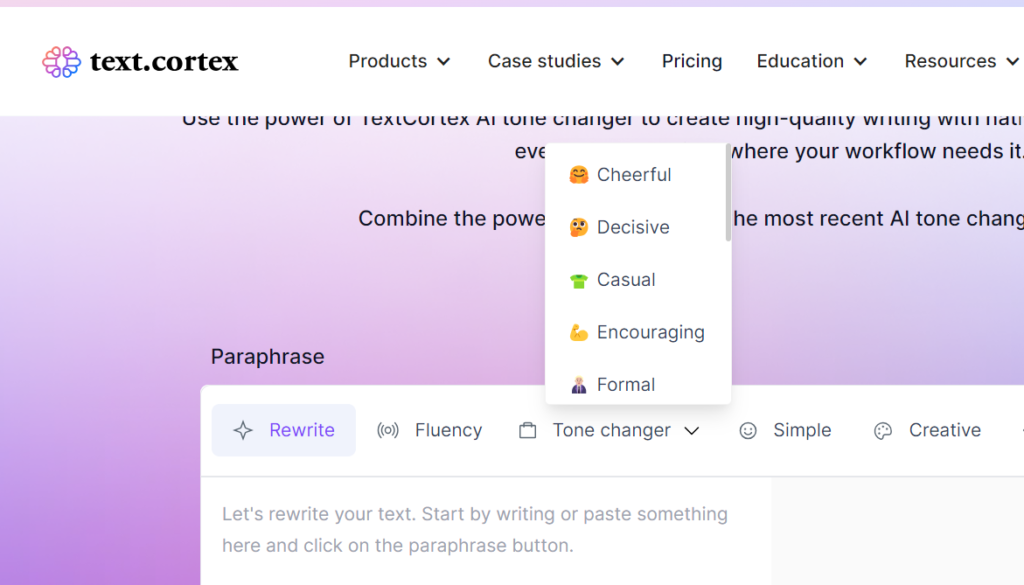
5. Use AI Tone Checkers or Tone Changers to refine or enhance the feedback you provide students on assignments or in emails. If you find yourself wondering why students do not listen to your feedback, try using a tone checker, like Sapling or Grammarly, to see how students may be hearing your words. Use ChatGPT or a dedicated tone changer to shift the tone from more formal and complex to more casual, simpler, or more encouraging. You can even dial up or down the level of the tone so your comments still feel authentically yours, just a little more student-centered.

Screenshot of Text.Cortex AI Tone Changer, showing options for a more cheerful, decisive, casual, encouraging, formal, simple, or creative tone.

6. Finally, if you know rubrics help students understand your expectations, but you hate writing them, use Taskade or ChatGPT to generate quick, effective rubrics for grading and feedback on assignments. Blackboard now includes a built-in AI-based rubric generator and other AI tools right inside your courses. Links to the Blackboard AI workshop and additional resources are available in the USC System KnowledgeBase Article.

Just as you would guide your students to use AI responsibly, you, too, will need to review the AI materials for accuracy, appropriateness, copyright, and citation, but AI can produce your draft in seconds, not hours. Letting your students know that these materials were generated with AI can also open the door to productive conversations about the ethical uses of AI in their own work.

No Learning Wasted: Prior Learning Credit and Equitable Transfer Practices

March 17, 9:30 am – 11:00 am, Virtual Meeting Link

Credit for Prior Learning is an essential strategy for supporting adult learners and transfer students. It is based on the premise that it doesn’t matter where learning occurs; what matters is what students know and what they can do.

USC Upstate recognizes a range of educational experiences and grants credit for prior learning: AP, CLEP, and similar exams; credit from military transcripts; workplace training experience recognized by the American Council on Education (ACE); credit by challenge exam for a USC Upstate course; credit by advanced standing (application for back credit); and credit by portfolio. USC Upstate also recognizes the completion of the general education requirements of an associate’s degree or bachelor’s degree at another accredited institution as fulfilling the general education requirements for a USC Upstate bachelor’s degree.

Learn how to navigate USC Upstate’s credit for prior learning policies and procedures and contribute to an accessible, affordable, and equitable education for all.

Can’t attend? Read more about Awarding Credit for Prior Learning and Institutional Best Practices. Explore the Council for Adult and Experiential Learning’s resources on “A Brighter Future through Credit for Prior Learning.”

The Implications of ChatGPT in Higher Education

March 22, 1:30 pm – 2:30 pm in the Arts and Sciences Building, Room 117

a human hand and robot hand with fingertips meeting in the post of Adam on the ceiling of the Sistine Chapel. Geometric design of glowing computer screens in the background.
Image by Gerd Altmann from Pixabay

The speed and power of ChatGPT to generate fluid text and synthesize information has taken higher education by surprise. Join this panel discussion of the implications of ChatGPT in higher education. Panelists include Dr. John Barnett, dean of the Library; Dr. Ron Fulbright, professor of information management and systems; Dr. Shuang Hundley, assistant professor of digital studies and mass media; and Tasha Thomas, senior instructor of English. 

Can’t attend? Check out “How Much Is Too Much? Drawing the Line on AI Assistance” by The Sentient Syllabus Project and “Artificial Intelligence: Friend, Foe, or Neither?” by the International Center for Academic Integrity.

Ryan Watkins’s article, “Update Your Course Syllabus for ChatGPT” includes several sample assignments that teach students to use ChatGPT responsible or highlight its limits. These also include assignments that have a non-AI and with-AI option in case not every student wants to or has the capability to create a ChatGPT account. Finally, don’t forget to check out the USC Upstate Syllabus template for suggested language about academic integrity.

Feedback for Growth Mindset

Grading and Growth Mindset Workshop

Feedback for Growth Mindset

Grading consumes much of our time and effort as faculty members, and it’s the place where our feedback can make a great difference in students’ ability to learn and succeed. The Grading and Growth Mindset workshop features Dr. Lex Lancaster, assistant professor of Art History, sharing their research and experiences with contract grading/specifications grading

Contract grading offers an alternative to traditional grading by focusing attention on effort, outcomes, standards, feedback, revision, and growth. By offering a transparent map to success, courses with contract grading often see the quality of students’ work improve while students build their metacognitive skills and become better learners across all their courses.

This blended workshop will be held virtually in Blackboard Collaborate Ultra and live at the George, Room 120, today, Tuesday, Oct. 19 at 2:30 pm