Blackboard Day 2026: Accessible Learning

Join us January 7, 2026 for our 7th Annual Blackboard Day

Register Now


9 am to 9:45 am

Welcome and Blackboard Learn Ultra Updates
Blackboard Learn Ultra Explore

Join the Blackboard Support Team to learn what is new in the Blackboard Learn Ultra Road Map for Spring-Fall 2026.

Look for new Grading settings and workflows, Automated Messages, Achievements, Competency-Based Mastery Learning, Release Conditions, and more!


10:00 am to 10:45 am

Streamlining Course Design with GenAI

Content Blocks and Knowledge Checks: Blackboard Learn Ultra Basics

Blackboard’s Artificial Intelligence Design Assist (ADA) offers easy-to-use course design tools enhanced by generative artificial intelligence and large language models. In this session, we will go over several key AI Design Assist tools for formatting modules and course pages (documents) and generating rubrics and knowledge checks. Plus, automate your content by using the human intelligence of the Learning Object Repository. Facilitator: Yamil Ernesto Ruiz, Director of Online Learning and Program Support


11:00 am to 11:45 am

Authentic and Career-Ready Assessments in Blackboard
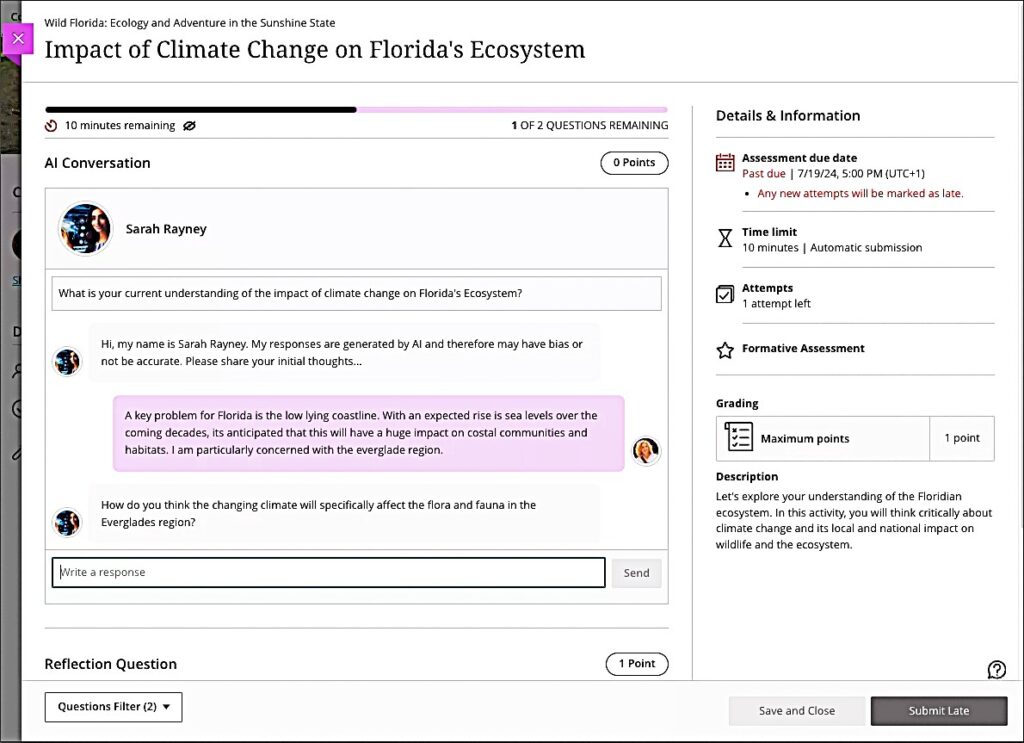
Screenshot of AI Conversation interface for students with image of the AI persona and examples of chat dialogue between student and AI persona

Both GenZ students and non-traditional learners crave relevance in their learning. Authentic and career-ready assessments can increase motivation and engagement while supporting Academic Integrity in the learning environment. Facilitator: Celena Kusch, Executive Director, Academic Innovation & Faculty Support.


12:00 pm to 1:00 pm

Lunch and ACUE Effective Teaching Practices Pinning Ceremony

Share a warming lunch and join the Association of College and University Educators (ACUE) in celebrating the achievements of USC Upstate faculty who have completed the Effective Teaching Practices program in the ACUE Pinning Ceremony. Facilitator: Lillian Reeves, Director of Transformative Pedagogy


1:00 pm to 1:30 pm

Using YuJa Lumina to Caption Videos
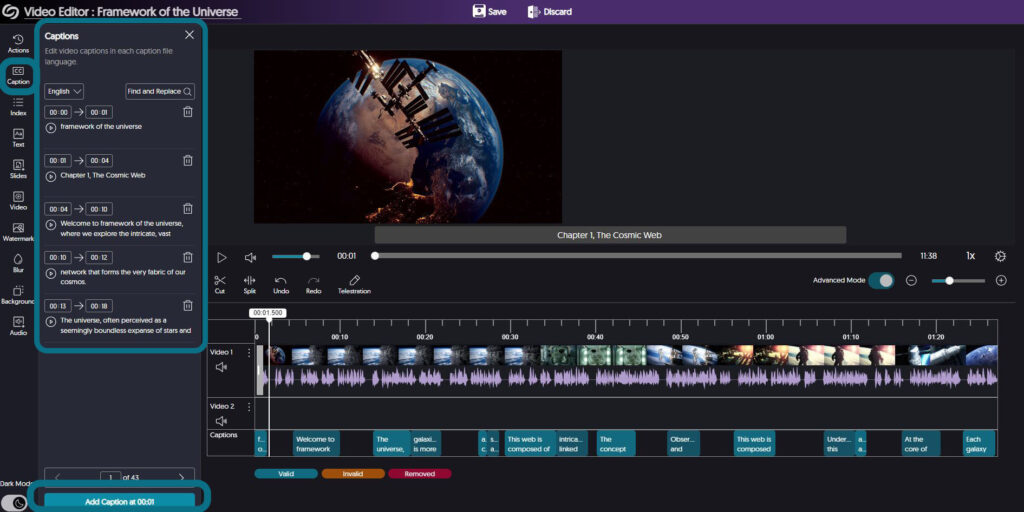
Screenshot of YuJa video editor showing captions panel for editing

High-quality, human-edited captions and audio descriptions form the bedrock of accessible video use. Learn more about YuJa’s advanced tools for ensuring your video content is accessible to all of your students. Facilitator: Diana Hernandez, YuJa


1:30 pm to 3:30 pm

Go for Green: Using Ally for Accessibility Guided Work Session
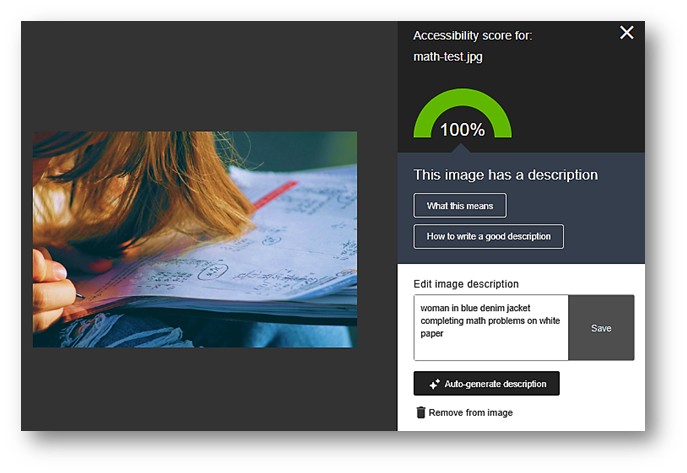
Screenshot of Ally Alt Text Generator in the Ally interface in Blackboard

In this hands-on work session, ask your questions, get pointers, and apply the Ally Accessibility tool to make your courses 100% accessible and meet the WCAG 2.1 AA federal accessibility standards for all instructional materials. Go for the Green in your Ally Accessibility Rating. Facilitator: Jennifer Bland, Learning Experience Coordinator


Students walking around an imaginary college landscape with buildings, books, and larger-than-life computers.

AI Spark Tips: Where AI and Learning Science Meet

In her most recent newsletter, “From Crutch to Coach?” Dr. Philippa Hardman, a scholar at the University of Cambridge, asks, does generative artificial intelligence (GenAI) “actually make us more capable, or just faster at outsourcing our thinking?

As we race to keep pace with AI-driven change, it can be hard to keep up with the latest developments in Learning Science, critical thinking, and AI. Hardman’s Learning Science Newsletter offers an incredibly thorough, up-to-date digest of research, tools, and strategies for using GenAI to improve learning.

If you are looking for one go-to source to stay informed on using AI to implement lessons from learning science, Hardman’s newsletter will serve you well.

Hardman’s free weekly newsletter offers an in-depth look at the links between learning science and instructional design. While some weeks’ posts are more useful for professional instructional designers, others offer a refreshing, research-informed take on productive and innovative uses of GenAI to foster critical thinking and promote metacognition.

AI-generated image of AI-enhanced view of a flower in a meadow full of other wildflowers

Below are some highlights from the past few months:

Students walking around an imaginary college landscape with buildings, books, and larger-than-life computers.

AI Spark Tips: Teaching through Real World Connections

When students see the relevance of course content in their own lives, they are often more motivated to study, strive for excellence, and succeed. Introducing practical applications can help students connect abstract disciplinary concepts to the kinds of questions they are already asking in real world contexts.

Specialized Generative Artificial Intelligence (GenAI) tools, like the Khanmigo Real World Text Generator or NotebookLM’s podcast-style audio overview, offer inspiration for instructors to integrate examples and cases that increase relevance and motivation.

Khanmigo Real World Text Generator

Khanmigo is an AI Learning Tool offered free to educators by Khan Academy. It is trained on relevant course materials for a range of educational levels, include introductory college courses. Instructors can use the Real World Context Generator or the Make It Relevant lesson planner to introduce challenging course concepts or end each unit with a focus on career relevance.

Khanmigo Differentiate Tools, including Real World Context Generator and “Make It Relevant”

NotebookLM Podcast-Style Audio Overview

Google’s NotebookLM tool offers a customized, multimedia AI chat for summarizing and asking questions about a collection of resources you select. One of its most exciting features, however, is the Audio Overview, which can synthesize your chosen materials into an engaging podcast-style discussion designed to link course content to real-world contexts.

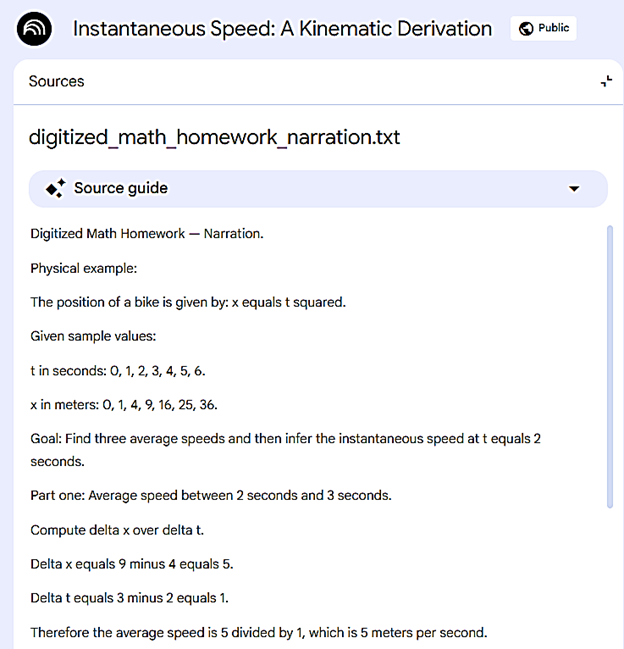
Take this example podcast generated from a math problem about calculating speed at an instant in time. The math problem includes the formula for instantaneous speed, a word problem about a bicycle, several values for time and distance, and a question for students to solve.

Screenshot of Notebook LM source material for a digitized math homework narration.

First, I generated a text-based narration by uploading a sample handwritten math problem and solution into ChatGPT.edu and asking it to create a human-centered narration of the problem. Then, I loaded the narration text into NotebookLM and asked for a podcast-style overview focused on applying the source to a real-world context. Inspired by just the mention of the bicycle, NotebookLM created an animated discussion of the principles behind the problem and their real-world applications.

A student may study the problem-solving notes by passively reading for a few minutes, but they might listen to an engaging podcast for 10 minutes while working out the problem alongside the AI “hosts.”

Bonus Tip:

Increase the accessibility of your NotebookLM podcast by download the audio file from NotebookLM and uploading it to your YuJa or Panopto media management account. YuJa or Panopto will automatically transcribe the audio for you, and you can edit the transcript to ensure your podcast meets the accessibility standards for high-quality captions and transcription.

Students walking around an imaginary college landscape with buildings, books, and larger-than-life computers.

AI Spark Tips: Using AI to Improve Image Accessibility

Faculty Spotlight: Dr. Akash Garg, Instructor of Biology

The CAST guidelines for Universal Design for Learning emphasize the importance of offering learners multiple ways to perceive information, including images and visualizations for sighted students and text-based descriptions of that content for students who engage with course materials with screen readers or audio formats.

In courses that make extensive use of images, providing text-based descriptions (called alt text) can be a time-consuming–though rewarding–process.

At USC Upstate, Dr. Akash Garg, Instructor of Biology, applied his AI developer skills to tackling the alt text challenge. He has launched the USC Upstate NSE Department Alt Text Assistant. Login with your USC Upstate ChatGPT.Edu account to access.

Akash Garg photo portrait

Inspired by the Arizona State University Image Accessibility Generator, Dr. Garg refined the AI model and added greater flexibility in the user interface to allow instructors working on alt text in their course to cut and paste or drag and drop images and files directly into the AI. He also added options for generating alt text for different purposes–instructional details for images in presentations, but background information without labels for images in quizzes and tests.

By fine-tuning the training materials and usability of the alt text generator, Dr. Garg offers faculty members a streamlined way to increase accessibility and improve learning for all students. The benefits are especially felt among STEM colleagues, where complex figures, models, diagrams, and hand-drawn solutions are an essential part of every course.

Instructors with less advanced alt text needs may find the Ally Alt Text Generator within Blackboard also provides high quality alt text for images within Blackboard pages. As with any AI-generated content, it is important to review and edit the alt text suggestions for accuracy and context.

Screenshot of Ally Accessibility tool in Blackboard, featuring Auto-generate description for alt text.

Bonus Tip:

It’s a good idea to start a new chat with the assistant when you switch topics or courses to avoid having past responses influence the alt text provided for the next topic.

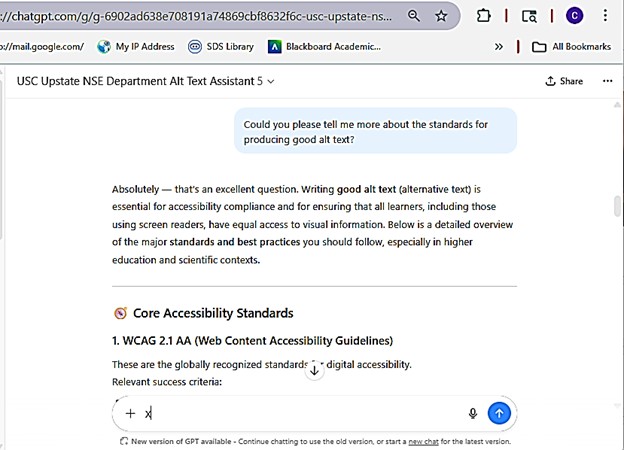
It’s also worth noting that AI Assistant has been trained on the details of current accessibility standards, so you can also ask for general tips for writing alt text.

Screenshot of Alt Text Assistant answering the question, "Could you please tell me more about the standards for producing good alt text?"
Students walking around an imaginary college landscape with buildings, books, and larger-than-life computers.

AI Spark Tips: The New World of AI Tutoring

In recent months, a range of journal and news articles featuring Harvard’s AI Tutors have touted the effectiveness of AI tutorbots in fields like physics, accounting, and statistics. Harvard’s AI tutor studies have found that students achieve greater academic success and engagement with personal tutorbots that can generate practice problems and questions or coach students through cases and scenarios from disciplinary or real-world perspectives.

Instructors who would like to take advantage of the benefits of AI tutors (without the time-consuming work of building, training, and testing their own bots) can turn to a range of sources for ready-to-launch AI tutors for students.

General Tutors Students Can Access

  • AI Tutor Pro by Contact Nord is our favorite tutorbot. It has three modes: grow knowledge, check knowledge, and discuss knowledge. Students can identify their subject and academic level and enjoy prompting and questioning from the AI tutor in one of eight common languages. At the end of the chat, students may opt to receive a summary of their strengths and areas for further study.
  • ChatGPT.Edu has launched its Study Mode for a built-in tutoring support. Login to ChatGPT.Edu with your USC Upstate single sign on through the Spartan Hub to access your protected, full ChatGPT account. In the chat prompt type “Turn on Study Mode,” and ChatGPT Study Mode will coach students to work through problems step-by-step rather than giving out complete answers.

Custom Tutors Instructors Can Build

For instructors who make a free account, AI Faculty Assistant for AI Tutor Pro allows instructors to create their own custom AI tutor trained on OpenStax textbook materials or faculty materials you load into the AI on your own (See AI Faculty Assistant Privacy Policy). Instructors generate a private link to their custom tutor, which can be shared with students in their course.

The AI Conversation assignment tool in Blackboard can also be used to create focused tutoring or coaching experiences at key points in the term. Set up your AI Conversation with a tutoring role play scenario targeting a specific learning experience for your course.

  • Design your AI persona as a peer tutor with experience in the detailed course topics you are covering. Or create an academic coach with expertise in study skills and metacognition or a supportive graduate teaching assistant in your discipline who challenges students to expand and develop their ideas.
  • Although instructors cannot upload content into the AI at this time, they can encourage tutoring about the learning process needed to study the course content. Invite students to work with the AI persona to draft a paper thesis or outline, develop study skills for an upcoming test, plan a project, or strategize a group assignment.

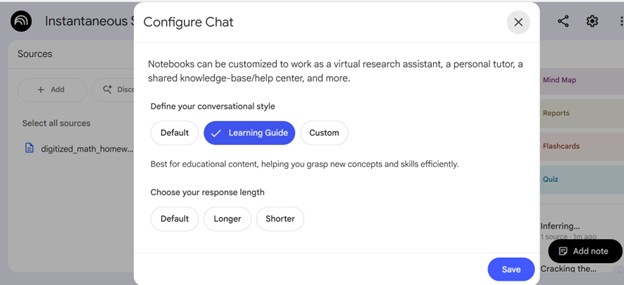
Google’s NotebookLM now offers a Learning Guide mode that enables instructors to upload or link to relevant materials, create audio or video resources and mindmaps, then share their notebook link with students as a Learning Guide. Students can listen to a podcast-style discussion of course materials, explore flashcards and quizzes, or chat with a tutorbot designed to coach them through ideas step-by-step. NotebookLM has a free plan for individuals, but added features require premium subscriptions.

NotebookLM chat options, with Learning Guide selected

AI Tutors from Publishers and Library Databases

Many textbook publishers and research databases offer their own AI tutoring and guidance within ebook or database sites.

For textbooks, Pearson, McGraw Hill, Macmillan, and VitalSource all offer coaching or tutoring AI bots embedded in a growing list of their ebooks. Students can see an AI icon while reading their textbook to start a practice session or quiz themselves on what they read.

Library databases such as JSTOR and Proquest offer AI assistants to coach students through the research process. The AI research assistants can suggest additional search terms and offer lists of concepts in selected articles or chapters from ebooks in the library collection. In the coming months even more library platforms and databases will be integrating AI assistants to enable natural language searching and to help streamline research for students.

Bonus Tip

Listen to a Harvard University faculty member describe their AI Tutor prompts in the YouTube video below.

Students walking around an imaginary college landscape with buildings, books, and larger-than-life computers.

AI Spark Tips: Custom Instructions for Responsive Chats

masked superhero seated in a school desk working on a laptop. AI-Generated Image

In the world of AI, context matters. A prompt that begins “I am a university professor teaching an undergraduate course…” will produce a completely different result than a prompt for a teenage superhero attempting to balance coursework with saving the world (AI-Generated Image).

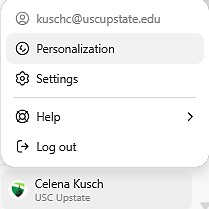
If you find yourself repeatedly reminding ChatGPT.edu about your context or your response preferences, Custom Instructions may be a great solution for you. You can find Custom Instructions under the Personalization settings in your ChatGPT.edu account.

Screenshot of ChatGPT.edu account settings, showing personalization, settings, help and log out.

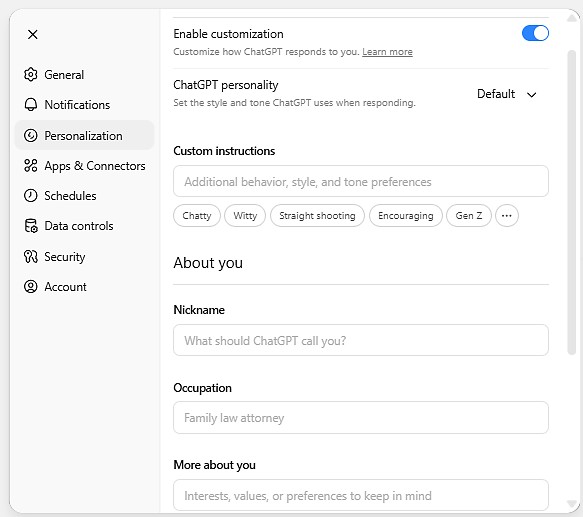
To customize your chat experience, you may wish to focus on two main areas of personalization: Custom instructions and More about you.

Custom instructions can guide the format, tone, and behavior patterns in chat responses, while More about you provides helpful context, interests, and perspectives you want the chat to prioritize in its responses.

Screenshot of Personalization menu in ChatGPT.edu, including Enable customization, ChatGPT personality, Custom Instructions, About You: Nickname, occupation, and More about you.

Custom Instructions Examples

As you write your custom instructions, consider your distinct preferences:

  • Do you usually want AI to summarize or shorten content? Do you want a list of bullet points with citations and links? Or do you want a thorough discussion in paragraph format for you to edit and streamline yourself?
  • What voice would you like AI to use? Academic, formal, business-like, friendly, constructively critical, or in the USC Upstate brand style? Tailoring AI’s voice to the style of the output you want it to produce can save you time editing later.
  • What behaviors do you want AI to start or stop? Do you usually want AI to produce sample content in a spreadsheet format or a Word document? Do you want AI to always pay attention to accessibility standards for headings in the documents it creates for you? Do you want it to skip its self-summary or refrain from reminding you that it is not a human? What behaviors can help you get the content you want faster and more efficiently?
  • What details about your professional responsibilities and background experience should AI take into consideration? Are you a university instructor who primarily teaches introductory college courses with a focus on relevant real-world applications that can build students career skills? Do you teach advanced, research-focused courses where you like to introduce students to the current disciplinary debates in your field? Let ChatGPT take those preferences into account.

Here’s a sample for a instructor who teaches primarily online business courses:

Custom Instructions: Write in a professional but approachable academic tone. When creating instructional materials or assessments, ensure they are suitable for an asynchronous online learning environment and reflect sound educational design (e.g., measurable verbs, logical scaffolding, student-centered language). Whenever possible, tie in relevant case studies or scenarios that illustrate course content in business contexts.

More about you: I teach undergraduate and graduate business students online. My interests include instructional design, online pedagogy, and assurance of learning. I aim to make my courses engaging, outcome-driven, and relevant to real-world business practice. I value clear alignment among objectives, activities, and assessments.

Bonus Tip

If you wish to engage in a chat from a different perspective or with different preferences, just return to your personalization settings and toggle off “Enable customization.” Toggle customization back on when you are ready to return to your usual instructions.

You may also create multiple, labeled roles in the custom instructions, then signal which role you’d like AI to apply in a given chat by starting with “Adopt Role 1.”

Read more about ChatGPT Custom Instructions.