Attending college, like other big moments of transition in our lives, is full of exciting and nerve-racking opportunities for learners everywhere to give an emphatic or shaky yes! to the newness of people, places, and ideas. But how do students get the most out of these opportunities?
Continue reading “College is Just the Place for Transformative Experiences”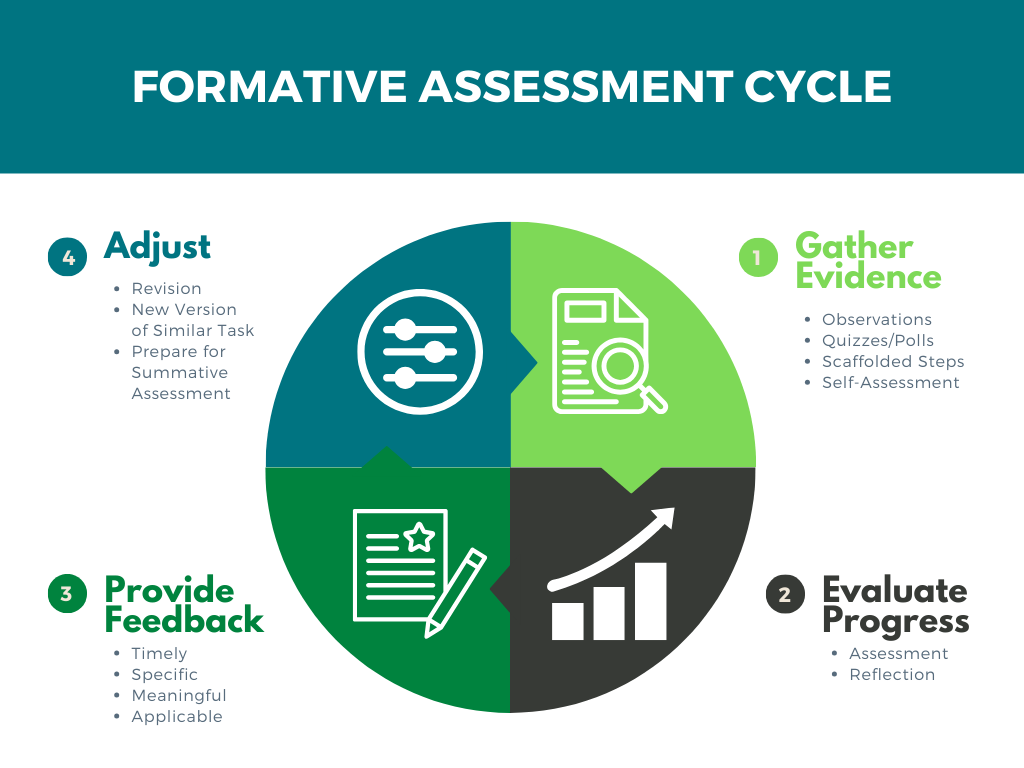
Formative Assessment and Success-Oriented Feedback
Formative assessment is often discussed in K-12 settings as a standard and expected part of curriculum delivery. In higher education, however, conversations about formative assessment have been somewhat more elusive. Traditionally, we rely on the high-stakes midterm, project, paper, final model which leaves little room for formative assessment that can foster growth.
Using formative assessments is a valuable curriculum practice that allows faculty and students to monitor student progress toward completing larger, summative assessments and achieving the course’s learning objectives. But what makes formative assessment a valuable tool for academic progress?
Continue reading “Formative Assessment and Success-Oriented Feedback”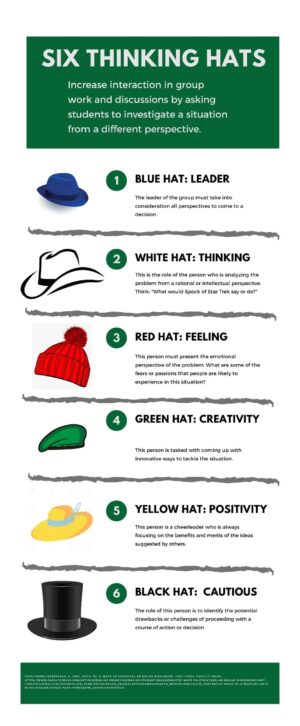
Group Work and Collaborative Learning
Collaborative learning is a well-established high-impact practice (HIPs). According to the Association of American Colleges and Universities, collaborative learning has two main goals: the first is to have students work together to solve problems or find solutions. And the second is for students to gain access to perspectives, experiences, and information they may have not yet considered or had access to. Collaborative learning can be a small pair-share experience after a micro-lecture or it can be a larger, weeks-long group research project.

Please Read It to Me: Read Aloud Options for Course Materials

There is a kind of warmth that comes from being read to–a sense that the reader is making a gesture of care. Perhaps this is the attraction of listening to audiobooks on our morning commute or asking Siri or Alexa to read us the news while we make dinner, walk the dog, or complete chores.
Our courses, too, can extend that gesture of care just by letting students know about free accessibility tools that can make nearly all your course materials available in audio formats.
Why Audio-based Materials Matter
Audiobooks are seen as a widespread convenience for letting us read when our eyes must be otherwise engaged, but they can do so much more. Making audio materials available in your courses can be an important step toward universal design for learning. Audio formats of readings are essential for learners who rely on screenreaders, but they are also great for learners with ADHD, multiple language learners, learners with dyslexia or other visual processing issues, or anyone who finds that particular course materials push them to the high end of their reading comprehension range.
Providing learners with the opportunity to listen to materials as they read can help reinforce the materials in working memory and increase the likelihood that course content will make it into long-term memory storage.
How Do We Access Audio Formats of Typical Course Materials?
Ebooks and Articles
If you are using Inclusive Access materials through the bookstore, VitalSource offers a Read Aloud feature on all its ebooks. Likewise, many articles available through the library databases offer a Text-to-Speech option within the database, and any article or ebook chapter or section that you download as a PDF can be read aloud through Adobe Acrobat Reader or Acrobat Pro. The Internet Archive of public domain texts offers a Read Aloud option, just by clicking the headphones icon in the navigation menu (next to zoom in and zoom out) for any text.

Blackboard LMS Pages and Documents
Any page or document that is loaded into a Blackboard course can be read aloud by clicking the Ally icon (an A with an arrow) in the upper right corner of the screen or on the right side of a document. Hovering over the Ally icon will display the text, “Download Alternative Formats.”


After clicking on the A with an arrow, you will see several options for alternative formats. Select Audio to have Ally download an audio version of the reading, then click on the downloaded file to play it on your computer or phone. Other formats include electronic braille, immersive reader, the color gradient text within Beeline Reader, and ePub for use on iPads, Nook, and other eReaders.

If you haven’t tried out all the features of Immersive Reader, you can go far beyond text-to-speech. Readers can customize backgrounds, fonts, spacing, “reading rulers” or line focus, and even show parts of speech and syllables.
Materials on Any Webpage
Many of our course materials are open educational materials that are available on public websites. In this case, you can have your web browser read to you. Google Chrome offers a “read aloud” extension that you can download for free in the Google Store. You can follow the instructions for using it on that page.
In Safari, this feature is already built-in, but it can be a little hard to find.
- Go to your webpage in Safari.
- Tap the Reader View icon in the browser bar. (This looks like a little paragraph next to the address of your website)

- In the menu at the top of your Safari browser, go to Edit > Speech > Start Speaking.
- Safari will immediately start reading the content on the webpage.
- To stop the reading in Safari, go to Edit > Speech > Stop Speaking.
On an iphone, you can do the same thing, just click the AA (little A and big A) icon and pick “Listen to Page.” Your phone will start reading to you. Please feel free to Google for how-to videos to look up other combinations of devices and browsers you may be using. You can be sure that there’s a way for your computer to read anything to you.

AI and ChatGPT for Instructors

We’ve all heard the hype about Artificial Intelligence (AI) and ChatGPT. For some, this technology is a death knell for original writing, learning, critical thinking, and higher education itself. Others see it as the latest in a long line of transformational technologies for learning and knowledge production, like the typewriter, the calculator, the personal computer, and the Internet.
If we cut through the hype, we can find several ways to use generative AI tools in our roles as instructors. Generative AI can help us streamline our workload, enhance the resources we offer our students, and free up more of our time to build meaningful mentoring relationships with our students and engage in the original scholarship that fulfills our own intellectual curiosity.
ChatGPT and other Artificial Intelligence Language Models are great at one thing–producing text that fits the expectations of a given situation. Using AI to support your classroom communication can help you translate your expert knowledge (and vocabulary) into more novice-friendly terms. AI can provide you with what I’ll call “bridging” materials–guides, instructions, samples, templates, and related materials–that help your students connect the dots between where they are starting and where you need them to go.
AI can create “bridging” materials–guides, instructions, samples, templates–that help your students connect the dots between where they are starting and where you need them to go.
AI-Generated Bridges to Learning
1. Ask ChatGPT or an AI Outcomes Generator to general student-friendly course learning objectives or module learning objectives that use Bloom’s taxonomy and are based on standards in your discipline. You may not find it easy to think about your field from a novice lens anymore, but ChatGPT can.
2. Enter course lecture materials, a list of readings, or even a research question into ChatGPT or Taskade to generate a study guide, reading guide, or summary at a lower reading level than your original text. Use your AI-generated guide as an anchor to introduce your course unit so students know what to look for in the more complex materials you are about to share. The Texas A&M University LibGuide for AI-Based Literature Review Tools is a great place to start.
3. Ask ChatGPT to respond to one of your assignment prompts to generate a sample completed assignment, sample assignment template, or process outline students can use to guide their work.
4. Share the results of a model ChatGPT session to show sample prompts and questions students could ask to work through pre-writing, brainstorming, outlining, organizing ideas, or other processes or tasks on the way to producing a project or assignment. Any process-based guidance that you would work through patiently, one-on-one with students during office hours can be replicated (less expertly) by AI. And, all the students who need the one-on-one coaching at 1am will be able to get it at the time that is right for them.
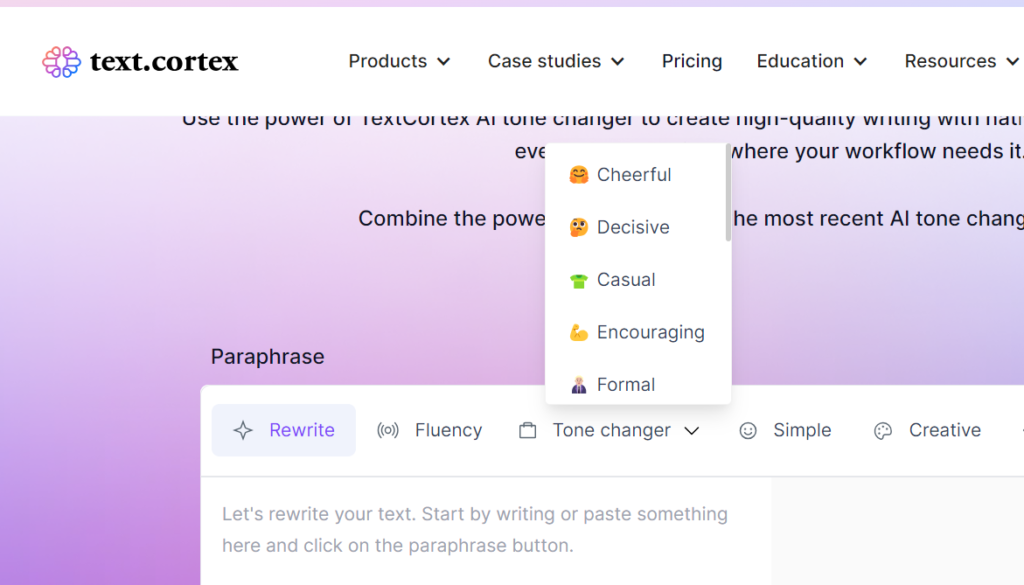
5. Use AI Tone Checkers or Tone Changers to refine or enhance the feedback you provide students on assignments or in emails. If you find yourself wondering why students do not listen to your feedback, try using a tone checker, like Sapling or Grammarly, to see how students may be hearing your words. Use ChatGPT or a dedicated tone changer to shift the tone from more formal and complex to more casual, simpler, or more encouraging. You can even dial up or down the level of the tone so your comments still feel authentically yours, just a little more student-centered.
6. Finally, if you know rubrics help students understand your expectations, but you hate writing them, use Taskade or ChatGPT to generate quick, effective rubrics for grading and feedback on assignments. Blackboard now includes a built-in AI-based rubric generator and other AI tools right inside your courses. Links to the Blackboard AI workshop and additional resources are available in the USC System KnowledgeBase Article.
Just as you would guide your students to use AI responsibly, you, too, will need to review the AI materials for accuracy, appropriateness, copyright, and citation, but AI can produce your draft in seconds, not hours. Letting your students know that these materials were generated with AI can also open the door to productive conversations about the ethical uses of AI in their own work.

Name Pronunciations and Preferred Names Available in Blackboard Courses
By Celena Kusch
We know how important it is for us to be the ones who determine how we would like to be recognized and addressed by name. We invite you to use the name pronunciation features in Blackboard to share your preferences with your instructors and classmates. Pronunciations and preferred names help us to acknowledge and demonstrate respect for each other within the Spartan Family. Helping your students to customize their Blackboard presence can help them feel more at home in all their classroom learning spaces.
Find instructions for using these new Blackboard features below:
- How to share a recording or pronunciation guide to your name.
- How do I list my preferred name in my student record and Blackboard profile?
- Check out more Blackboard Student Resources to find answers to other common Blackboard questions.
Instructors will see pronunciations and preferred names in the roster, discussions, gradebook, messages, and wherever you can find names throughout your course.